BA
Baluu
Docs
    • Can I Email Attendees for a Specific Event?
    • How can I view my Guestlists and check attendance?
    • Recording Online Events
    • I'm changing my Business address
    • Business Community Guidelines
    • How to get more bookings for online events
    • The Dos and Don'ts for online events
    • Adding Notes to a Customer Booking
    • How can I cancel my events in bulk?
    • Using the Description Toolbar in Event Basic Details and Emails
    • How to run a test booking on Baluu
    • How to close your Baluu account
    • How do I delete an instructor/team member?
    • How do I set a minimum age for my event?
    • How to Export Customer Data
    • What video conference platform can I use to host my online events?
    • Can I resend any auto-emails to my customers?
    • Is Baluu GDPR Compliant?
    • How do I add a new event location?
    • How to Hide, Archive or Delete an Event
    • How to Extend Gift Card Expiry Dates?
    • How to Edit Customer Details
    • Invoice Management: Marking as Paid and Cancelling Invoices
    • How to Add a Mandatory Tick Box for Terms & Conditions
    • Why Customers Encounter Errors When Trying to Cancel or Reschedule Events
    • How to Change Your Payout Schedule
    • Where to View Your Bookings and Estimated Earnings
    • How to Change Your Baluu Booking Website Link?
    • How to Update Event Availability?
    • Adding new time slots to existing by appointment availability
    • Time Off (For Appointment-Based Sessions)
    • How to Redeem a Gift Card or Discount Code: Step-by-Step Guide
    • Adding new time slots to existing by appointment availability
    • How to Manually Add an Attendee to a Session in Baluu
    • How do I redeem a gift voucher/gift card?
    • Adding Analytics and Tracking Code
    • How to add or remove guests from a booking
    • How to Review Emails Sent to Your Customers
    • Duplicate Listing
    • How to Manage Notifications in Baluu
    • How to Enable Google and Apple Pay?
    • Search Help
    • Reminders
    • How to Create Bundles V2
    • Setting How Far in Advance Customers Can Book
    • How to Cancel a Booking and Issue a Refund
    • How to Create an Online Event on Baluu
    • How to Use Your Bundle (Customer Guide)
    • How to Update Your Subscription Plan
    • How to Email All Your Customers
    • Introducing the New Basket Function
    • Multi-Date Selection: Allow Customers to Book Multiple Dates in One Purchase
    • How to Change the Email Address Customers Reply To
    • Understanding Min / Max Selection for Add-on Groups
    • Managing Reviews in Baluu
    • Managing Membership Members
    • How to Manually Add a Booking Using a Customer’s Bundle or Membership
    • How to Show Exact Spaces Remaining on Your Class
    • How to Change Payment Details for Private Payments and Invoices?
    • How to Change Ticket Prices for Future Fixed-Date Sessions Without Affecting Existing Dates
    • How to Merge Two Customer Accounts
    • Late Booking Tolerance
    • How to Update the Date, Time or Location of an Existing Term
    • Private Payments/Invoices
    • Rescheduling Bookings
    • How does the Waiting List feature work?
    • How to reschedule my customers from one listing to another
    • How do I refund a customer for a term?
    • Can I refund a customer for a bundle?
    • Can I reduce a customer's bundle?
    • Stripe Connect
    • VAT Reporting and Sales Reports
    • My discount code is not working
    • Add or Edit a Product Delivery Option
    • Using Discount Codes for Offline Payments

Understanding Min / Max Selection for Add-on Groups

Is it possible to sell a class and equipment together as an add-on?

Yes, it's possible!

Add-on groups allow you to organise multiple add-ons into a single option set so customers can choose between variants of the same item during checkout.
​

For example, instead of showing separate add-ons for Size S, Size M, and Size L, you can group them under “Wetsuit size” so customers simply choose their size.

The Min and Max settings control how many options a customer can select from that group.

How to manage add-ons:

  1. Go to Manage Listing

  2. Click on the Add-ons tab

  3. Select Add Add-on

  4. Enter the details

  5. Save your changes

How Add-on Groups Work

An Add-on Group connects multiple add-ons together so they appear as a single selection field for customers.

Example:

Group name: Wetsuit size
Add-ons in group:

  • Size S

  • Size M

  • Size L

Customers will see this as one choice during checkout, rather than three separate add-ons.

Min / Max Selection Logic

The Min and Max values determine the minimum and maximum number of options a customer can select from the group.

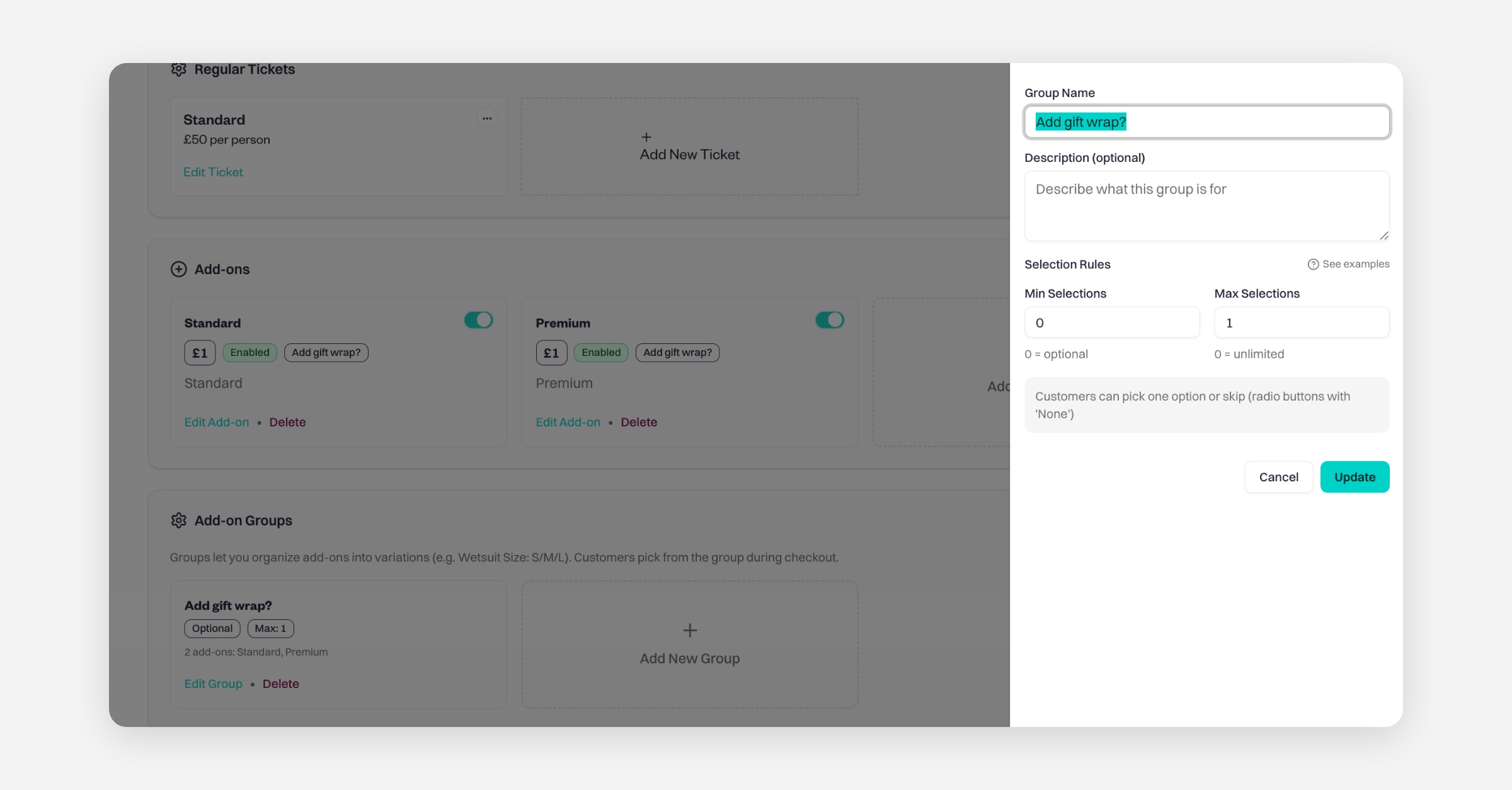
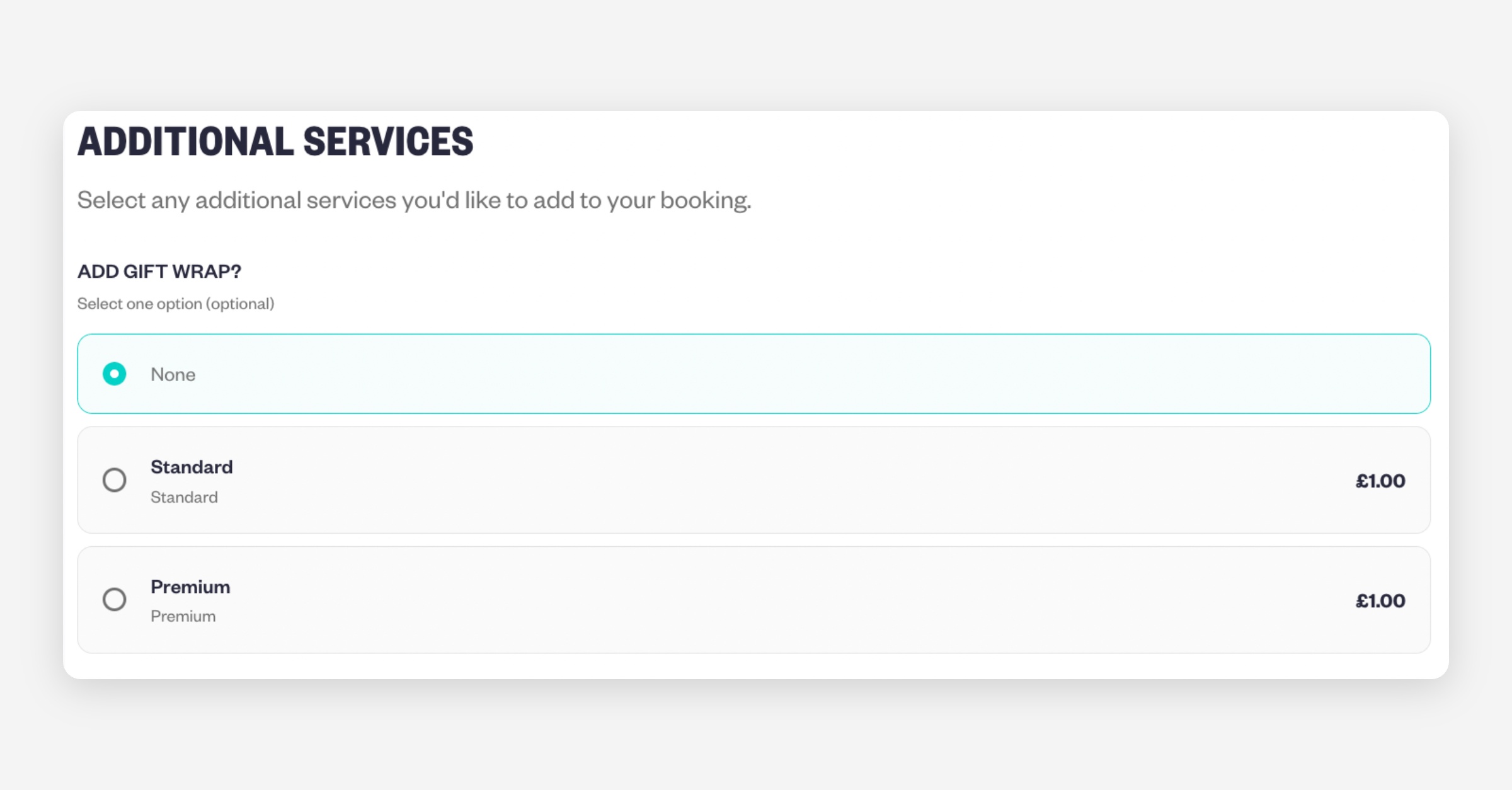
Min 0 · Max 1 — Optional single choice

Customers can choose one option or skip it entirely.

Displayed as radio buttons with a “None” option.

Example:

Add gift wrap?

  • None

  • Standard

  • Premium

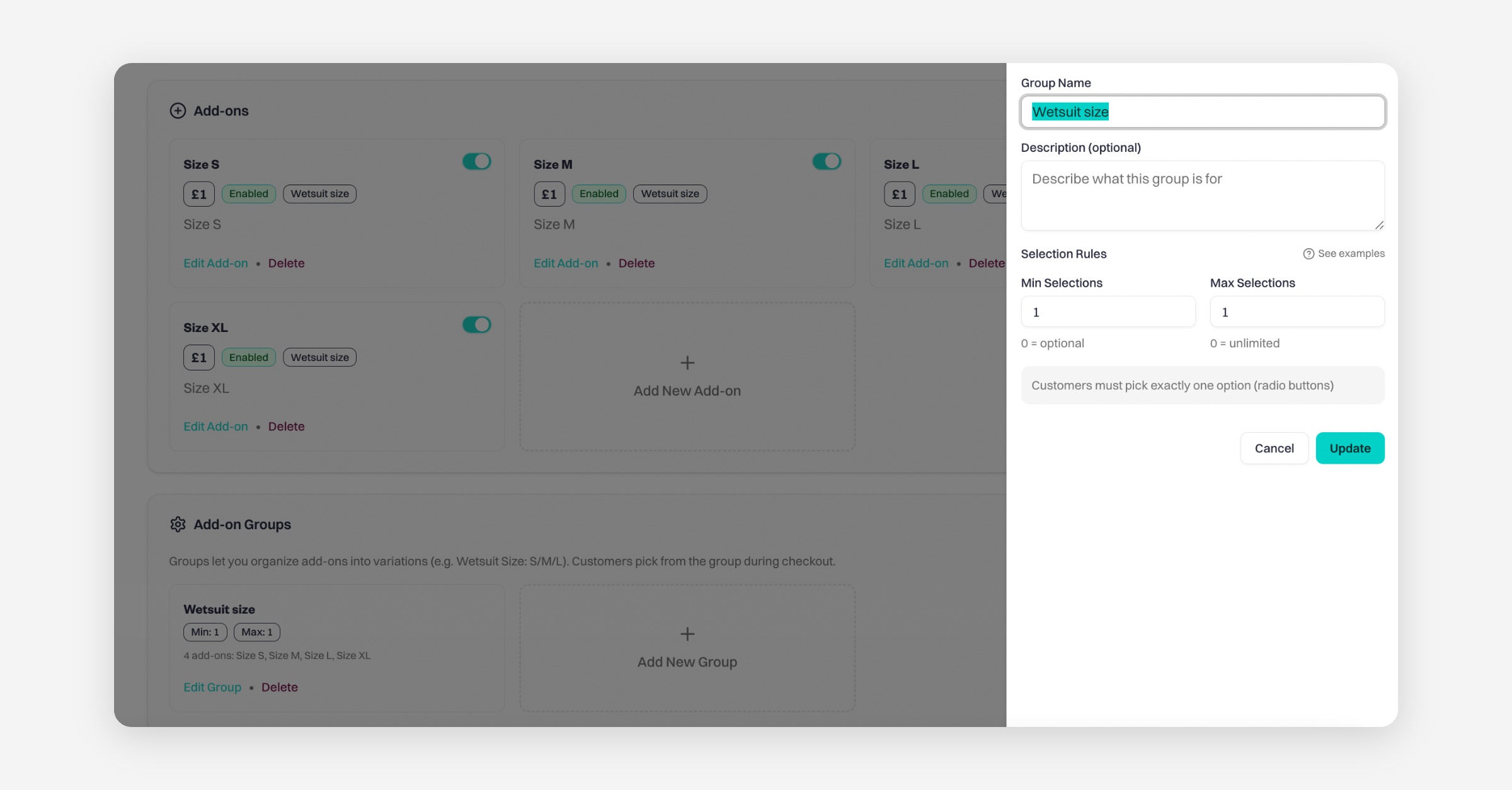
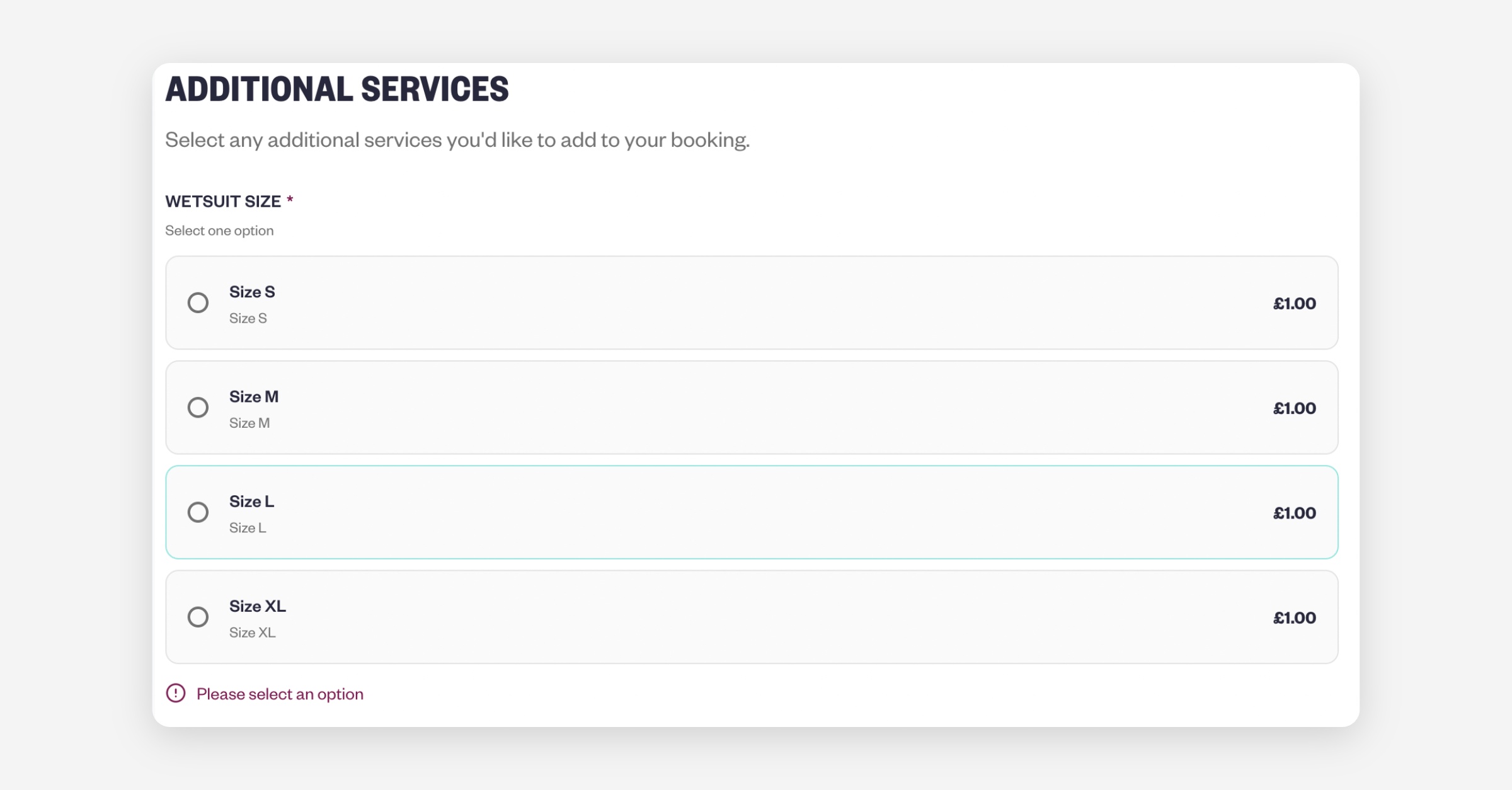
Min 1 · Max 1 — Required single choice

Customers must select exactly one option before continuing.

Displayed as radio buttons without a “None” option.

Example:

Wetsuit size

  • S

  • M

  • L

  • XL

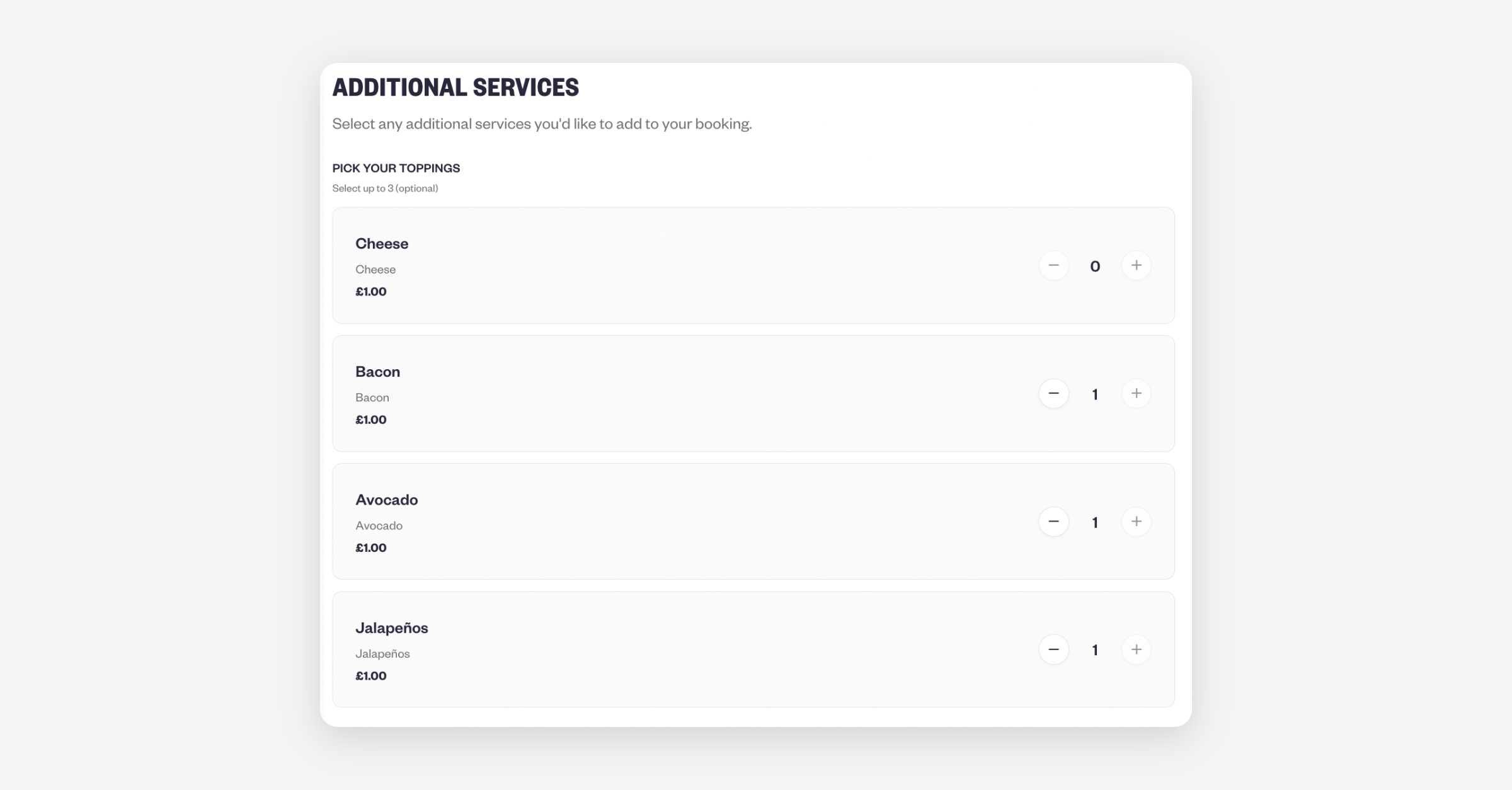
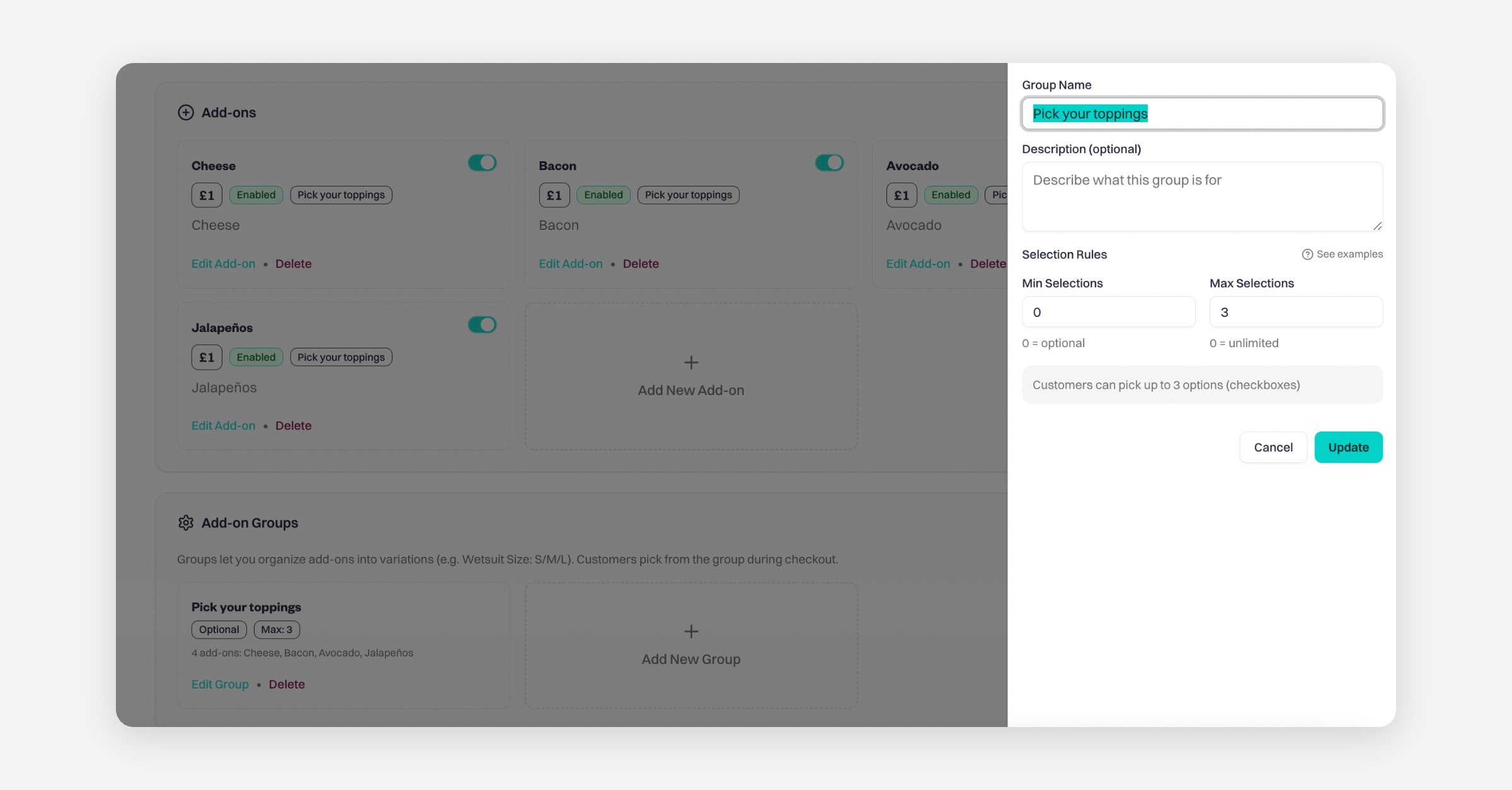
Min 0 · Max 3 — Optional multi-choice

Customers can select up to 3 options or skip entirely.

Example:

Pick your toppings

  • Cheese

  • Bacon

  • Avocado

  • Jalapeños

Customers can either:

  • Choose different options (e.g. 1 of each), or

  • Choose multiple quantities of the same option, as long as the total does not exceed 3 selections.
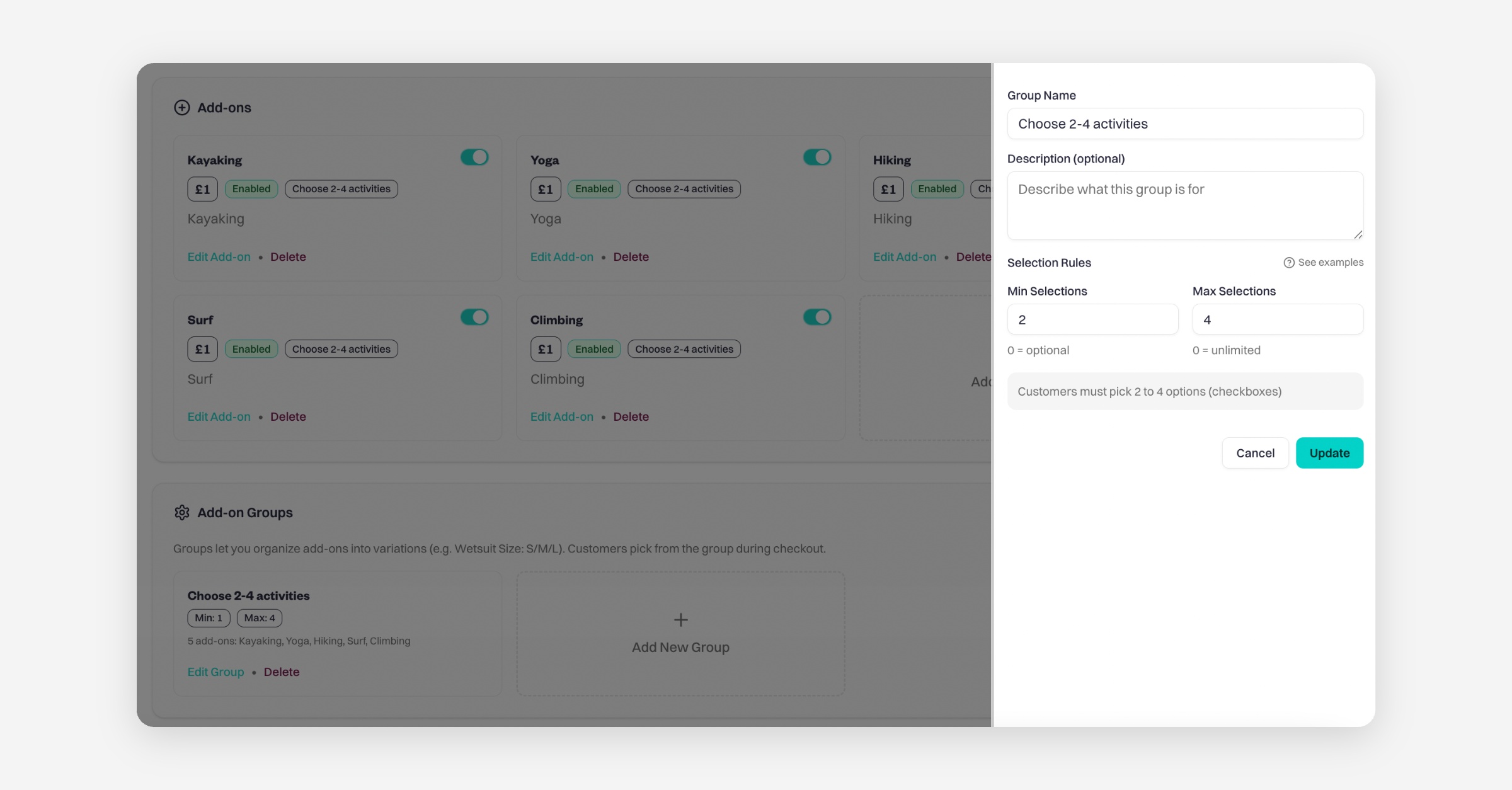
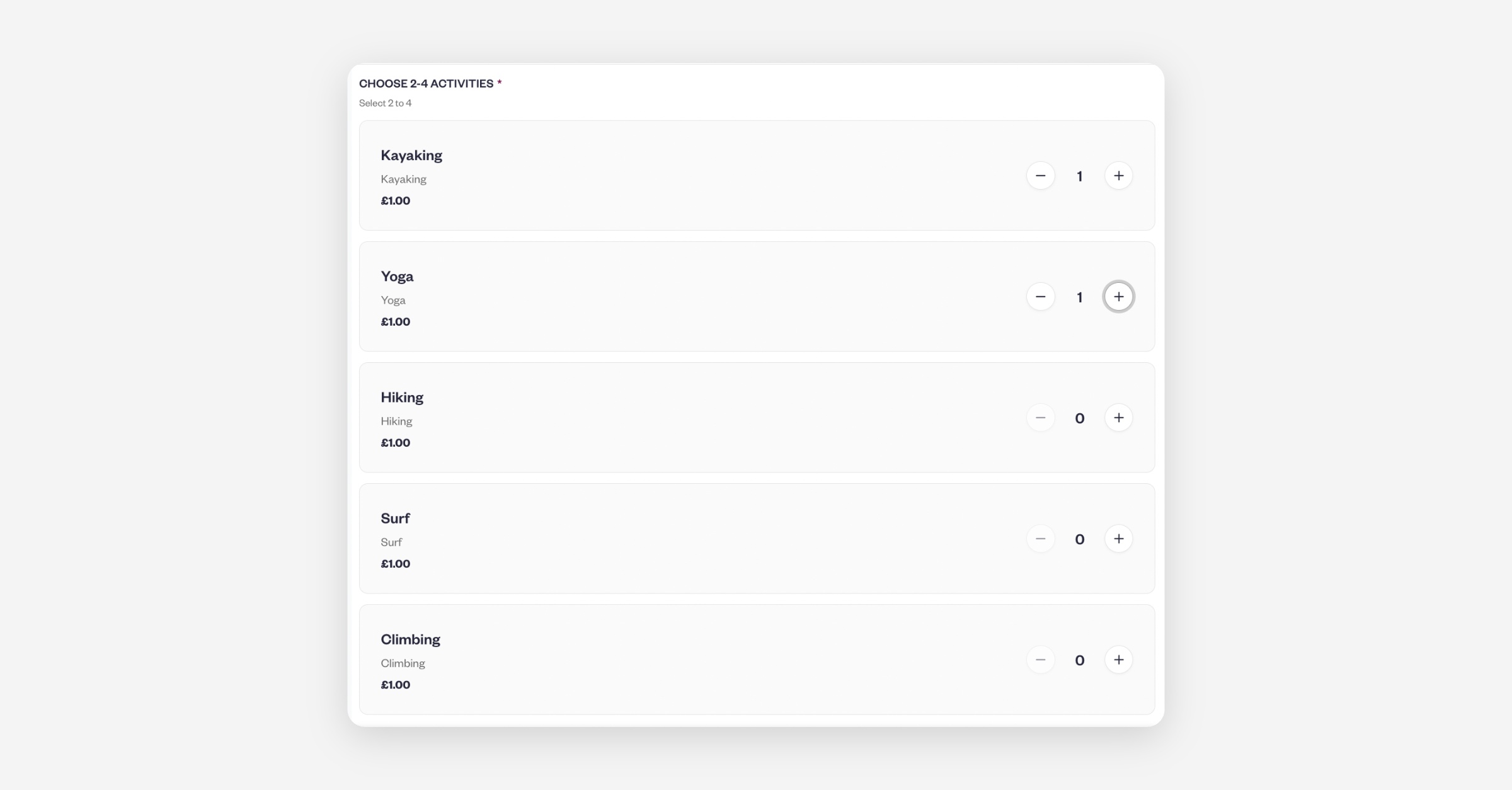
Min 2 · Max 4 — Required multi-choice

Customers must select at least 2 options to proceed with the booking, but no more than 4.

Example:

Choose 2-4 activities

  • Kayaking

  • Yoga

  • Hiking

  • Surf

  • Climbing

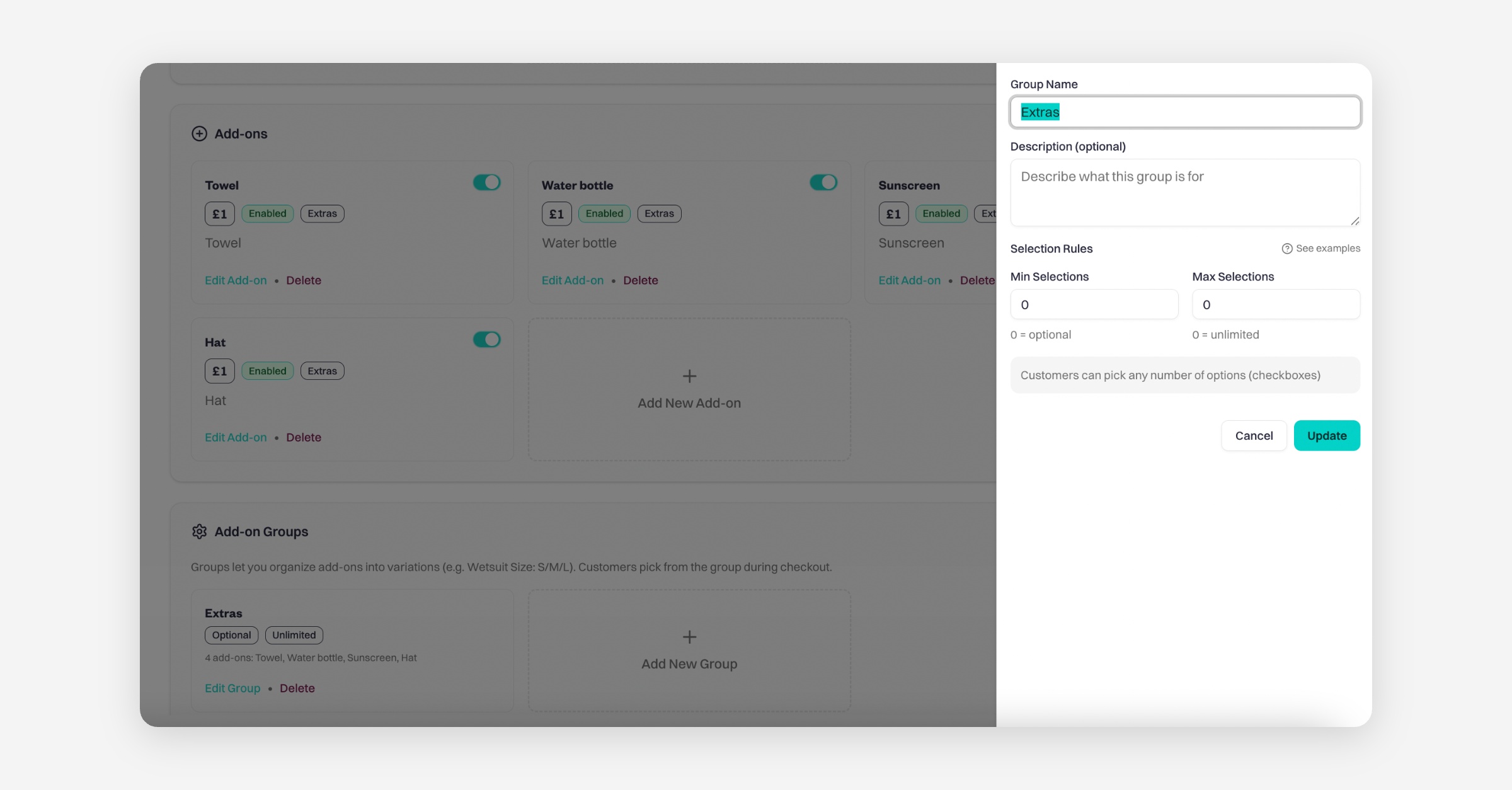
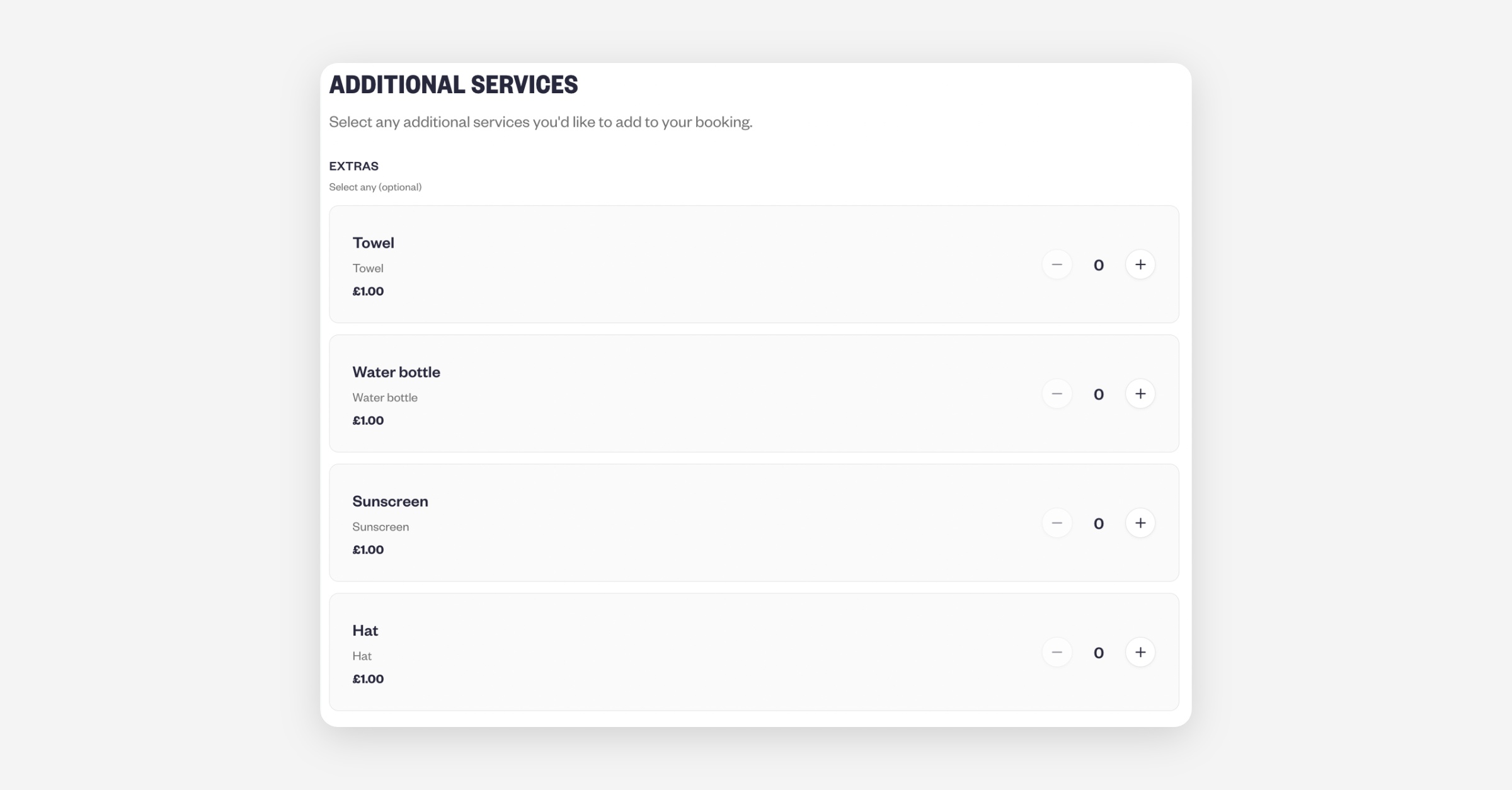
Min 0 · Max 0 — Unlimited selection

Customers can select any number of options or skip entirely.
​

Example:

Extras

  • Towel

  • Water bottle

  • Sunscreen

  • Hat

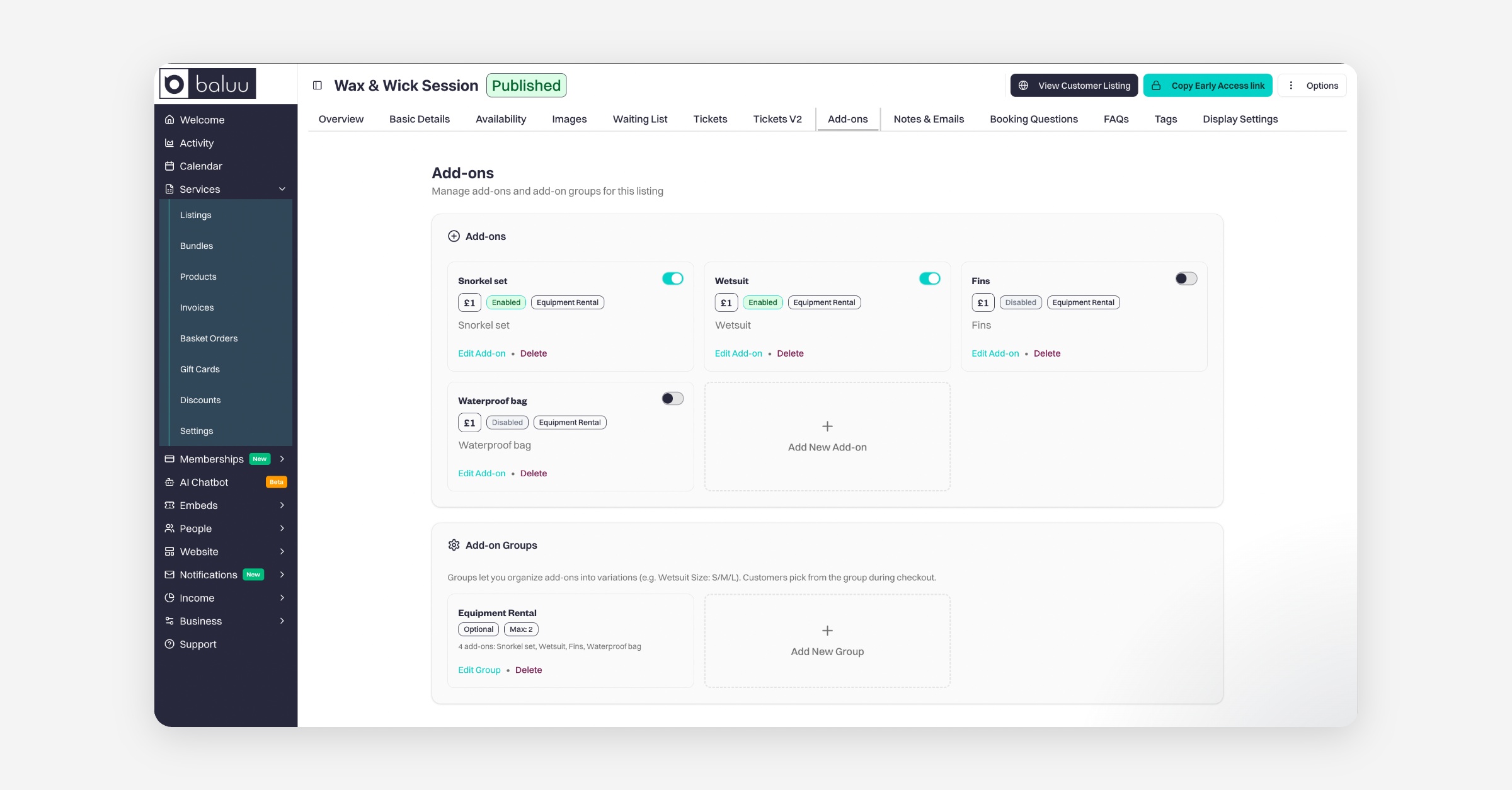
Example: Add-on Group Setup

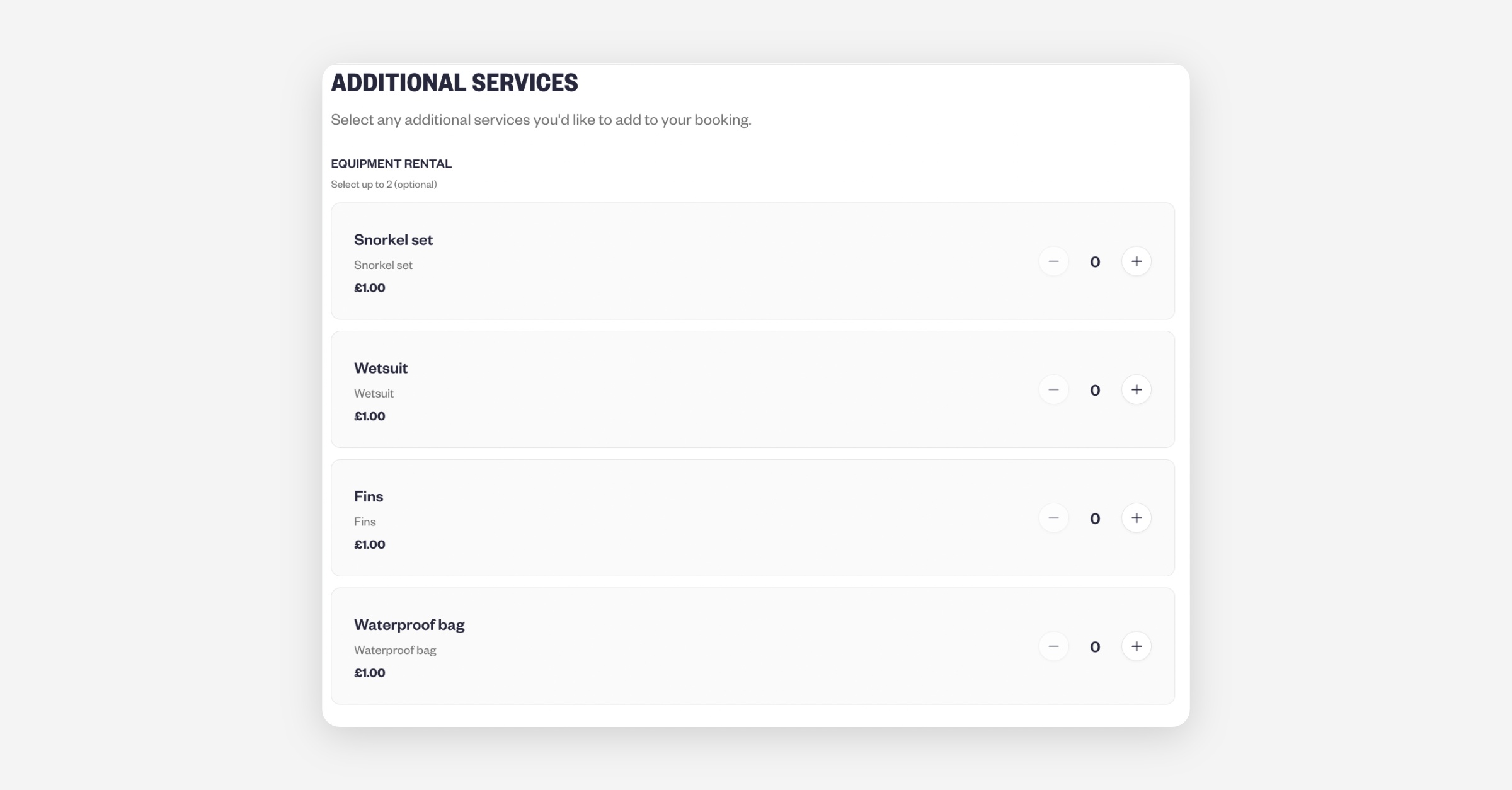
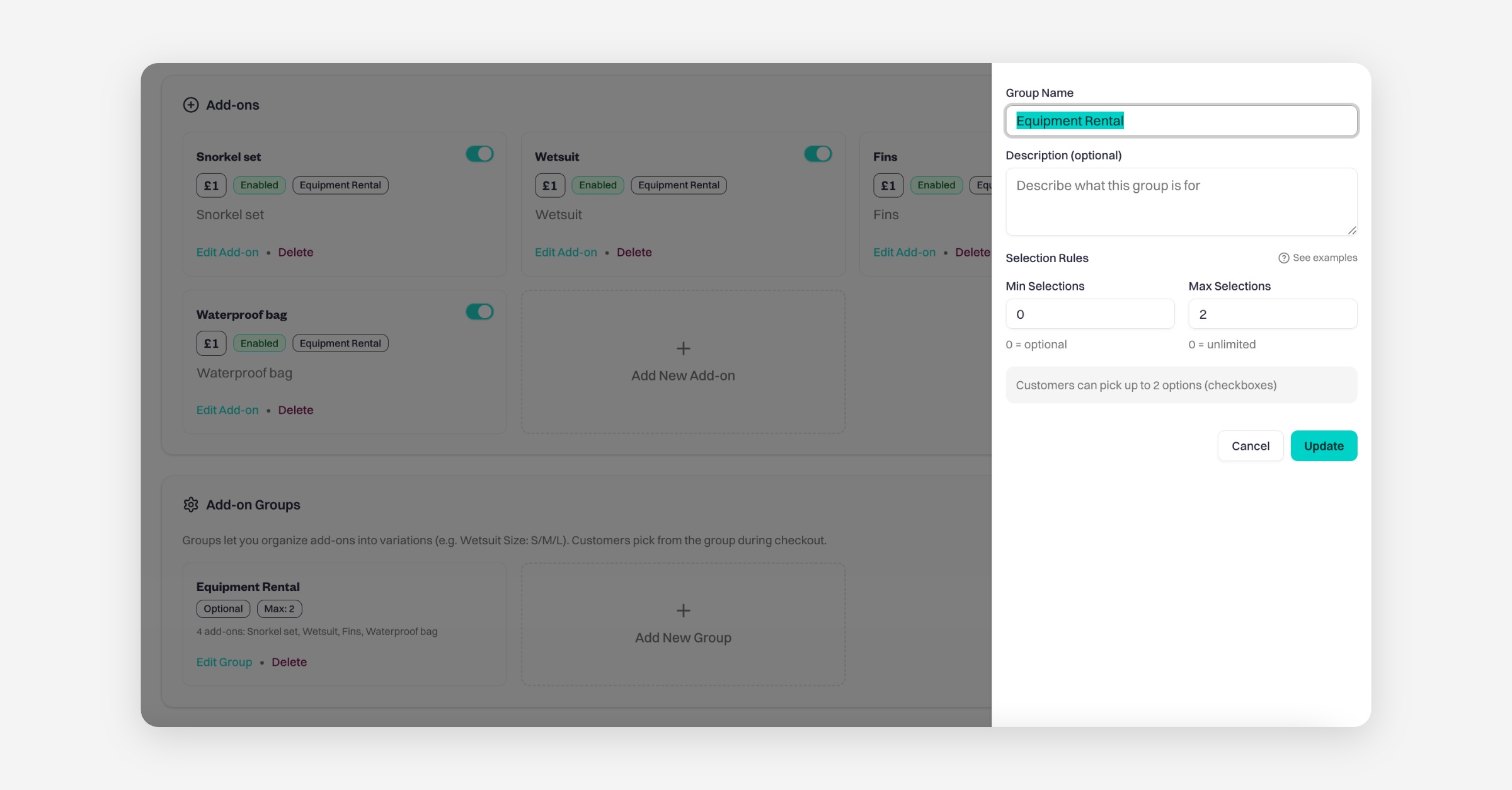
A provider may create an Add-on Group for equipment rental.

Group: Equipment Rental
​Min: 0
​Max: 2

Add-ons in the group:

  • Snorkel set

  • Wetsuit

  • Fins

  • Waterproof bag

Customers can select up to two items or none.
Important

When you create add-ons, they are saved across your listing and available for all events.
However, for each individual event, you can enable or disable which add-ons are available.

How do I view add-ons included in a booking?

When customers make a booking, you can view the add-ons in your Calendar.

  1. Go to your Calendar.

  2. Click on the class or session.

  3. In the Tickets section, you will see any add-ons included with that booking.
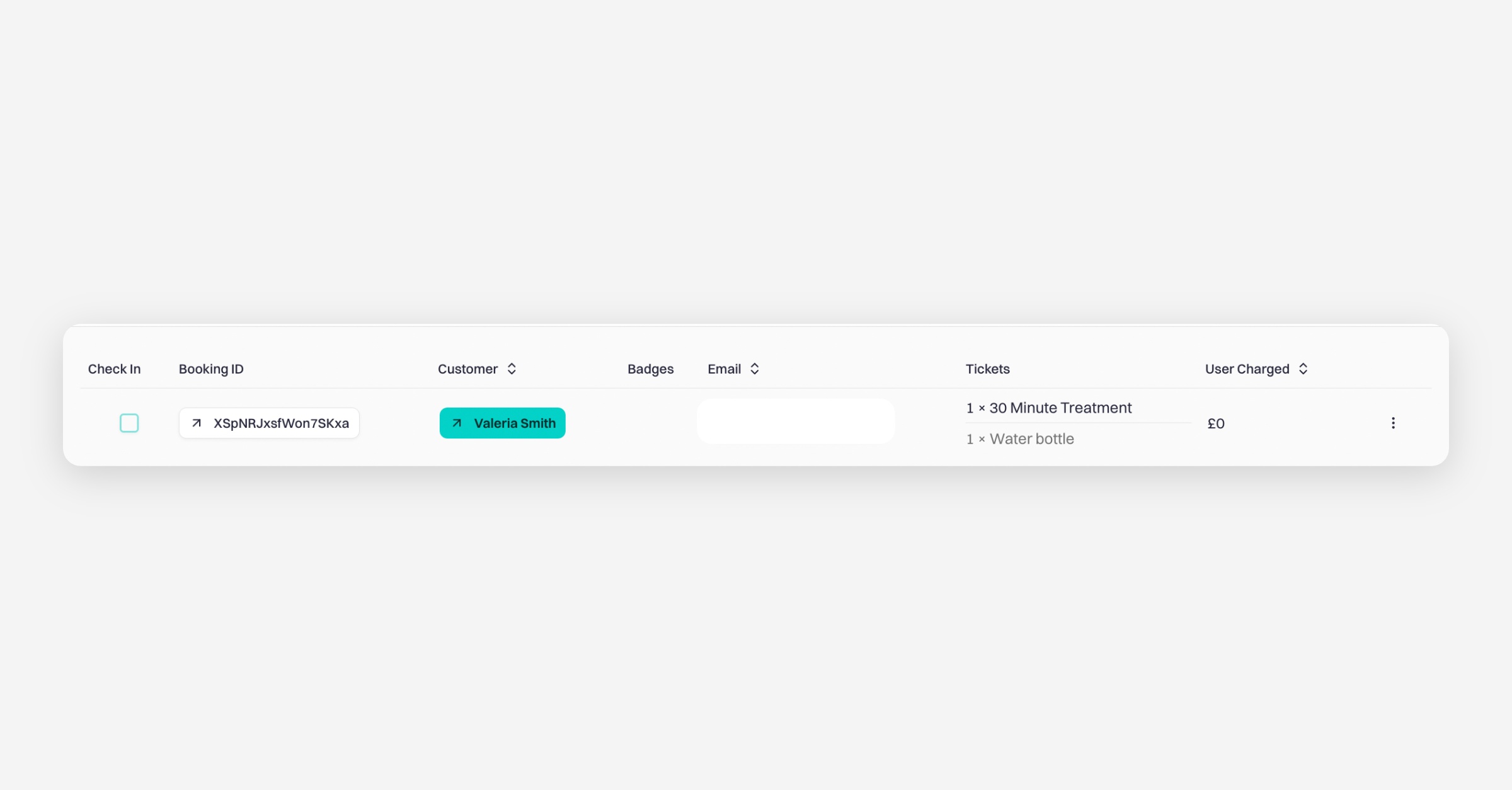
If you click on the Booking ID, it will open the full booking details. At the bottom of the page, you’ll see a section called “Tickets & Add-ons purchased with this booking”, where all tickets and add-ons included in that booking are listed.
​

PrevHow to Change the Email Address Customers Reply To
NextManaging Reviews in Baluu
Was this helpful?