BA
Baluu
    • Can I Email Attendees for a Specific Event?
    • How can I view my Guestlists and check attendance?
    • Recording Online Events
    • I'm changing my Business address
    • Business Community Guidelines
    • How to get more bookings for online events
    • The Dos and Don'ts for online events
    • Adding Notes to a Customer Booking
    • How can I cancel my events in bulk?
    • Using the Description Toolbar in Event Basic Details and Emails
    • How to run a test booking on Baluu
    • How do I delete an instructor/team member?
    • How do I set a minimum age for my event?
    • How to Export Customer Data
    • What video conference platform can I use to host my online events?
    • Can I resend any auto-emails to my customers?
    • Is Baluu GDPR Compliant?
    • How do I add a new event location?
    • How to Hide, Archive or Delete an Event
    • How to Extend Gift Card Expiry Dates?
    • How to Edit Customer Details
    • Invoice Management: Marking as Paid and Cancelling Invoices
    • How to Add a Mandatory Tick Box for Terms & Conditions
    • Why Customers Encounter Errors When Trying to Cancel or Reschedule Events
    • How to Change Your Payout Schedule
    • Where to View Your Bookings and Estimated Earnings
    • How to Change Your Baluu Booking Website Link?
    • How to Update Event Availability?
    • Adding new time slots to existing by appointment availability
    • Time Off (For Appointment-Based Sessions)
Docs / FAQ's

Using the Description Toolbar in Event Basic Details and Emails

You can add links and format text in your emails and event descriptions using the built-in text editor in Baluu.

This allows you to make your content clearer, highlight important information, and direct customers to external pages when needed.

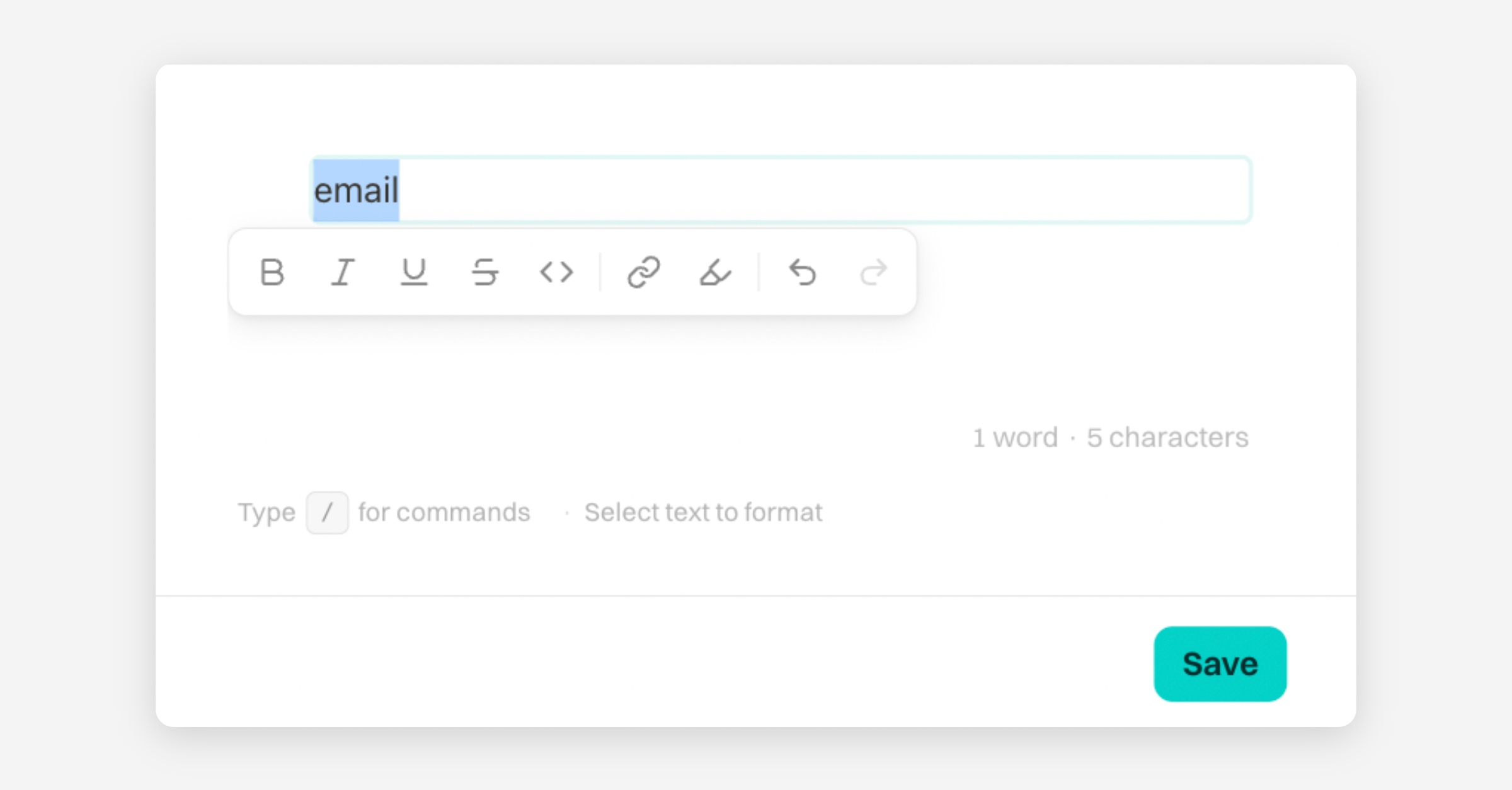
When creating or editing an event, you can format the description in the Basic Details section using the text toolbar.

To use the toolbar:

  1. Go to your Event and open Basic Details

  2. In the Description field, type your text

  3. Highlight (select) the text you want to edit

  4. A formatting toolbar will appear

Adding a URL to Your Text

To add a link:

  1. Highlight the text you want to turn into a link

  2. Click the link icon in the toolbar

  3. Paste your URL

  4. Confirm to apply the link

Your selected text will now be clickable for customers.

Using the Toolbar in Automated Emails

You can apply the same formatting when editing automated emails.

To do this:

  1. Go to your Listing

  2. Open Notes and Emails

  3. Add text

  4. Highlight the text you want to format

The same formatting toolbar will appear

PrevHow can I cancel my events in bulk?
NextHow to run a test booking on Baluu
Was this helpful?