BA
Baluu
Docs
    • Can I Email Attendees for a Specific Event?
    • How can I view my Guestlists and check attendance?
    • Recording Online Events
    • I'm changing my Business address
    • Business Community Guidelines
    • How to get more bookings for online events
    • The Dos and Don'ts for online events
    • Adding Notes to a Customer Booking
    • How can I cancel my events in bulk?
    • Using the Description Toolbar in Event Basic Details and Emails
    • How to run a test booking on Baluu
    • How to close your Baluu account
    • How do I delete an instructor/team member?
    • How do I set a minimum age for my event?
    • How to Export Customer Data
    • What video conference platform can I use to host my online events?
    • Can I resend any auto-emails to my customers?
    • Is Baluu GDPR Compliant?
    • How do I add a new event location?
    • How to Hide, Archive or Delete an Event
    • How to Extend Gift Card Expiry Dates?
    • How to Edit Customer Details
    • Invoice Management: Marking as Paid and Cancelling Invoices
    • How to Add a Mandatory Tick Box for Terms & Conditions
    • Why Customers Encounter Errors When Trying to Cancel or Reschedule Events
    • How to Change Your Payout Schedule
    • Where to View Your Bookings and Estimated Earnings
    • How to Change Your Baluu Booking Website Link?
    • How to Update Event Availability?
    • Adding new time slots to existing by appointment availability
    • Time Off (For Appointment-Based Sessions)
    • How to Redeem a Gift Card or Discount Code: Step-by-Step Guide
    • Adding new time slots to existing by appointment availability
    • How to Manually Add an Attendee to a Session in Baluu
    • How do I redeem a gift voucher/gift card?
    • Adding Analytics and Tracking Code
    • How to add or remove guests from a booking
    • How to Review Emails Sent to Your Customers
    • Duplicate Listing
    • How to Manage Notifications in Baluu
    • How to Enable Google and Apple Pay?
    • Search Help
    • Reminders
    • How to Create Bundles V2
    • Setting How Far in Advance Customers Can Book
    • How to Cancel a Booking and Issue a Refund
    • How to Create an Online Event on Baluu
    • How to Use Your Bundle (Customer Guide)
    • How to Update Your Subscription Plan
    • How to Email All Your Customers
    • Introducing the New Basket Function
    • Multi-Date Selection: Allow Customers to Book Multiple Dates in One Purchase
    • How to Change the Email Address Customers Reply To
    • Understanding Min / Max Selection for Add-on Groups
    • Managing Reviews in Baluu
    • Managing Membership Members
    • How to Manually Add a Booking Using a Customer’s Bundle or Membership
    • How to Show Exact Spaces Remaining on Your Class
    • How to Change Payment Details for Private Payments and Invoices?
    • How to Change Ticket Prices for Future Fixed-Date Sessions Without Affecting Existing Dates
    • How to Merge Two Customer Accounts
    • Late Booking Tolerance
    • How to Update the Date, Time or Location of an Existing Term
    • Private Payments/Invoices
    • Rescheduling Bookings
    • How does the Waiting List feature work?
    • How to reschedule my customers from one listing to another
    • How do I refund a customer for a term?
    • Can I refund a customer for a bundle?
    • Can I reduce a customer's bundle?
    • Stripe Connect
    • VAT Reporting and Sales Reports
    • My discount code is not working
    • Add or Edit a Product Delivery Option
    • Using Discount Codes for Offline Payments

Multi-Date Selection: Allow Customers to Book Multiple Dates in One Purchase

We’ve introduced a new feature called Multi-Date Selection, allowing customers to purchase multiple session dates in a single transaction.

This feature is designed for regular date events only and makes it easier for customers to book multiple sessions at once — while keeping all automation and communication fully intact.

What Is Multi-Date Selection?

Multi-Date Selection enables customers to:

  • Select multiple available dates for the same event

  • Add them to their basket in one go

  • Pay once for all selected dates

  • Receive separate confirmations and automations for each date

Although the payment is processed in a single transaction, each date behaves as an individual booking within the system.

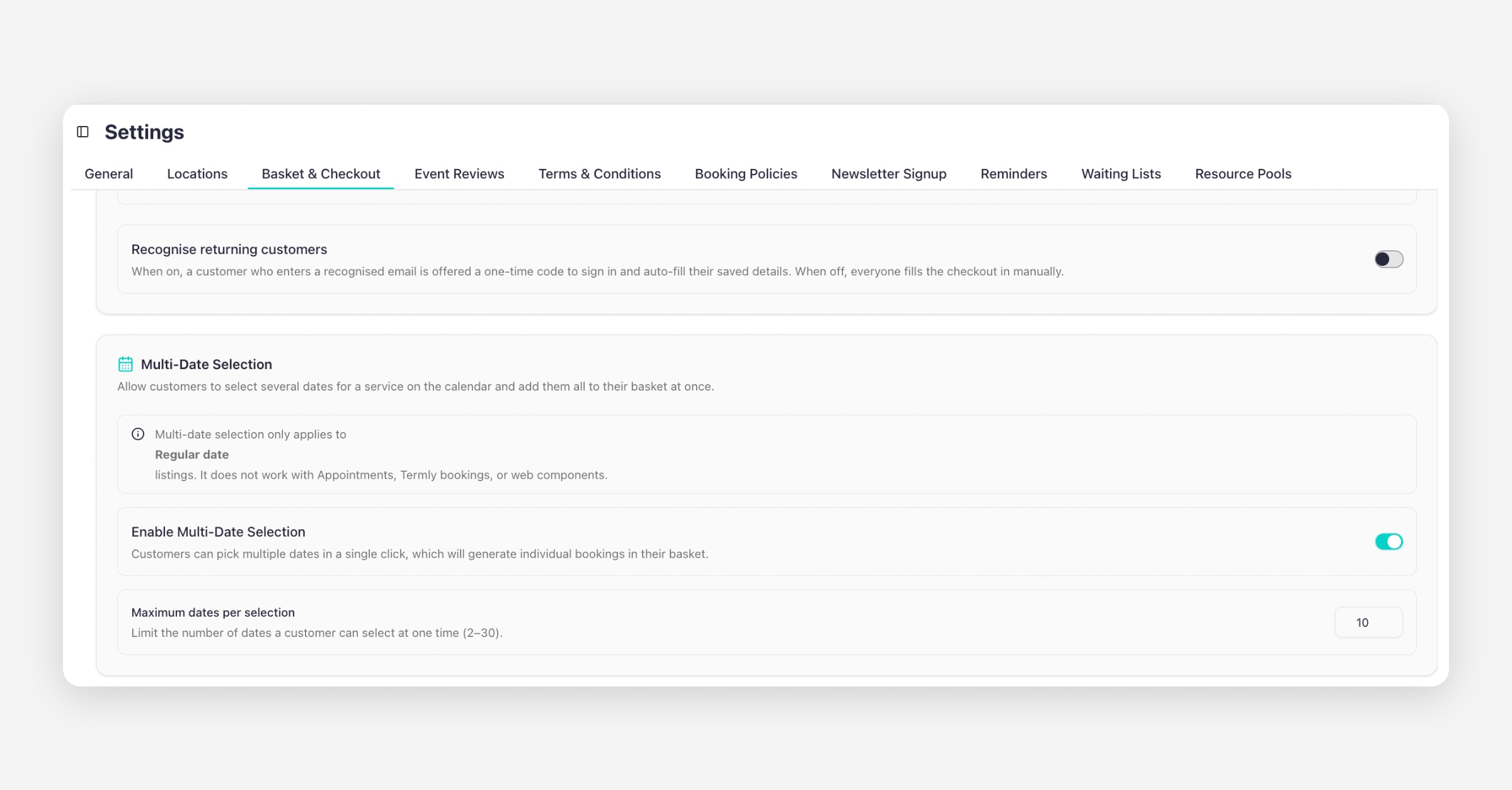
Multi-Day Selection can only be enabled if the Basket feature is active.

How to Enable Multi-Date Selection

To activate this feature:

  1. Go to your Dashboard

  2. Navigate to Settings

  3. Click on Basket & Checkout

  4. Enable Multi-Date Selection

  5. Set the maximum number of dates per selection

You can allow customers to select anywhere between 2 and 30 dates per purchase.

How It Works for Customers

Once enabled, customers booking a regular date event will see the option to select multiple dates before proceeding to checkout.

Example Scenario:

  • A customer selects 4 session dates

  • They click Continue

  • They choose their ticket type (e.g. Standard Ticket)

  • The ticket price is £50 per session

The system will automatically calculate:

£50 × 4 dates = £200 total

The customer then:

  • Clicks Continue

  • Completes the checkout as usual

  • Enters any required information

  • Makes one single payment

What Happens After Purchase?

Even though the customer pays once, the system treats each selected date as an individual booking.

This means:

  • The customer receives separate confirmation emails for each date

  • Each date has its own:

    • Automated emails

    • Reminders

    • Communications

    • Attendance tracking

  • All automations run exactly as if the sessions were booked separately

From an operational perspective, nothing changes — except that the purchase process is simpler and faster for your customers.

PrevIntroducing the New Basket Function
NextHow to Change the Email Address Customers Reply To
Was this helpful?