BA
Baluu
Docs
    • How to Add a Regular Event?
    • What is Termly Event and How to Use It (trials and drop-ins)
    • How to Create an Appointment Event?
    • Managing Tickets & Pricing
    • Can I sell products on Baluu?
    • Notes & Auto-Emails
    • What happens when I get a booking?
    • Event FAQs
    • Booking Questions
    • Images
    • Logging into your Baluu Dashboard
    • Struggling to login
    • New article
    • Step-by-step guide to create your Baluu website
    • Getting Started: Understanding Availability Types
    • Calendar View
    • Managing Reviews and Post-Event Emails in Baluu
    • How Do I Create Gift Cards?
    • How to Manage and Create Discount Codes?
    • How to Add and Manage Team Members?
    • How to Access Invoice from Baluu and Manage Billing
    • Customer Login Centre - How customers can manage their bookings on Baluu
    • Customers Section
    • How to Set Up and Sell Memberships on Baluu
    • How to add Booking Policies
    • Recommended Baluu Website Image Guidelines
    • How to Create and Send Newsletters in Baluu
    • Baluu Event Types and Which One to Choose?
    • Early Access Events
    • How to Display Your Baluu Reviews on an External Website?
    • How to Embed Baluu into Your Website
    • Your Social Media Profiles
    • Webpage Navigation Bar
    • Your Logo
    • When I Can't Reduce the Availability by One

How to Display Your Baluu Reviews on an External Website?

Learn how to display your Baluu reviews on your external website using our embed feature.

If you’d like to showcase the reviews you’ve collected on Baluu on your own website, you can easily do this using our embed feature. This allows you to build trust with new customers by displaying real feedback directly on your site.

Step-by-Step Guide

  1. Log in to your Baluu account
    Once logged in, head to your dashboard.

  2. Go to Embeds
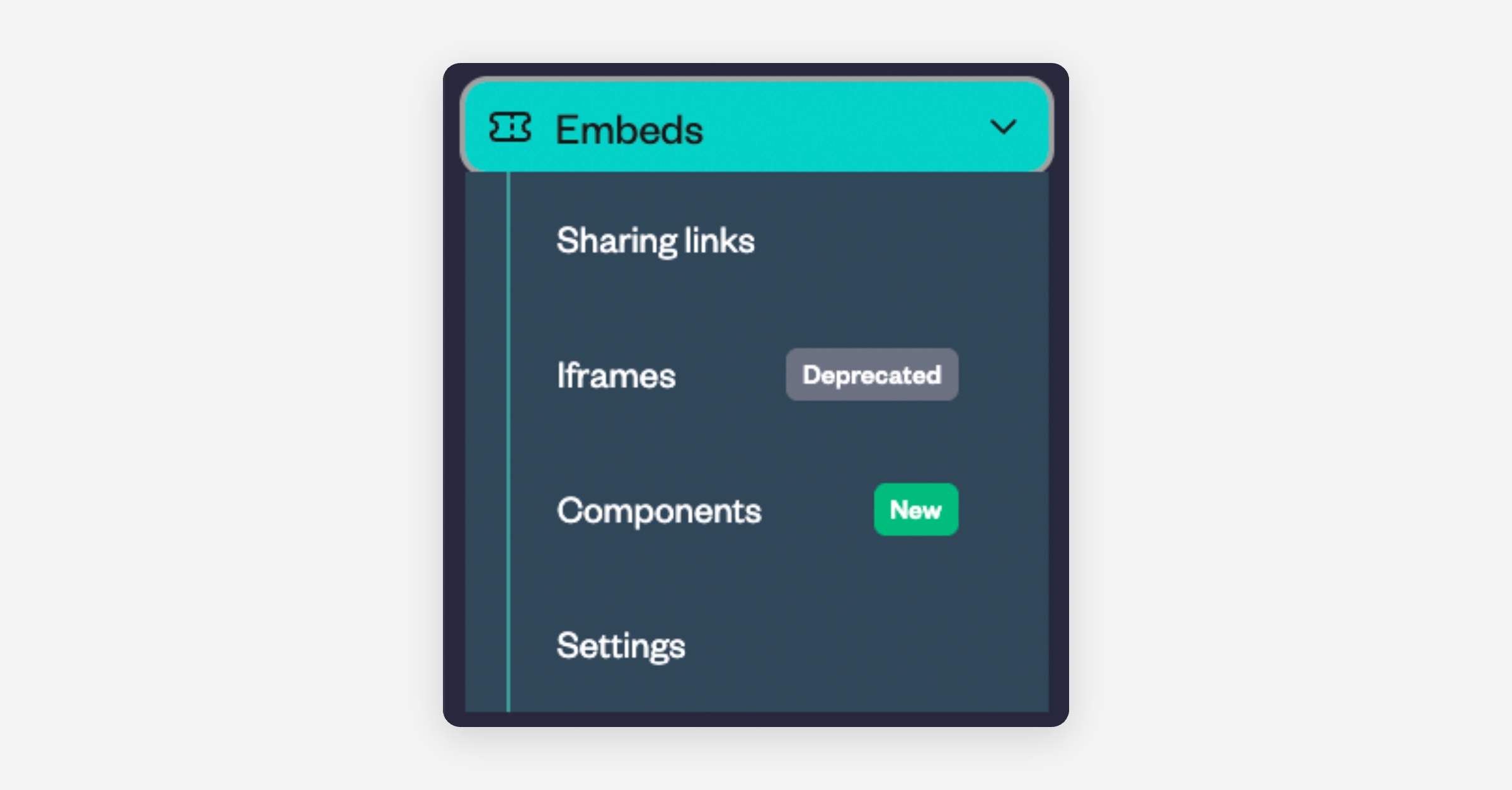
    From the main menu, select Embeds, then choose Components.
  3. Scroll to the People & Trust section
    In the Components area, scroll down until you find the People & Trust section.
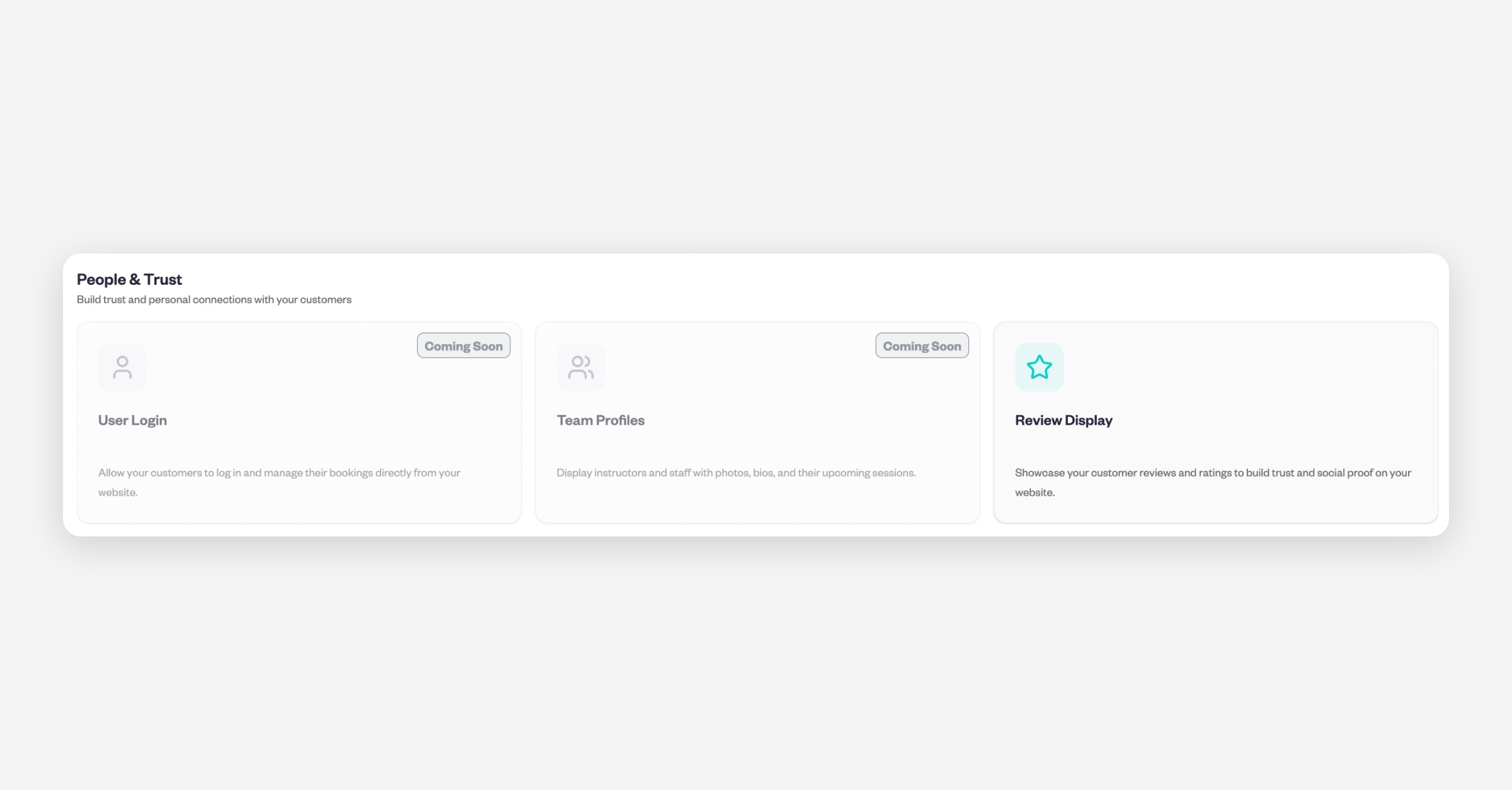
  4. Select Review Display
    Click on Review Display to open the review embed options.

  5. Choose your display scope
    Select how you’d like your reviews to appear (for example, business wide (all reviews) or reviews for a specific listing).
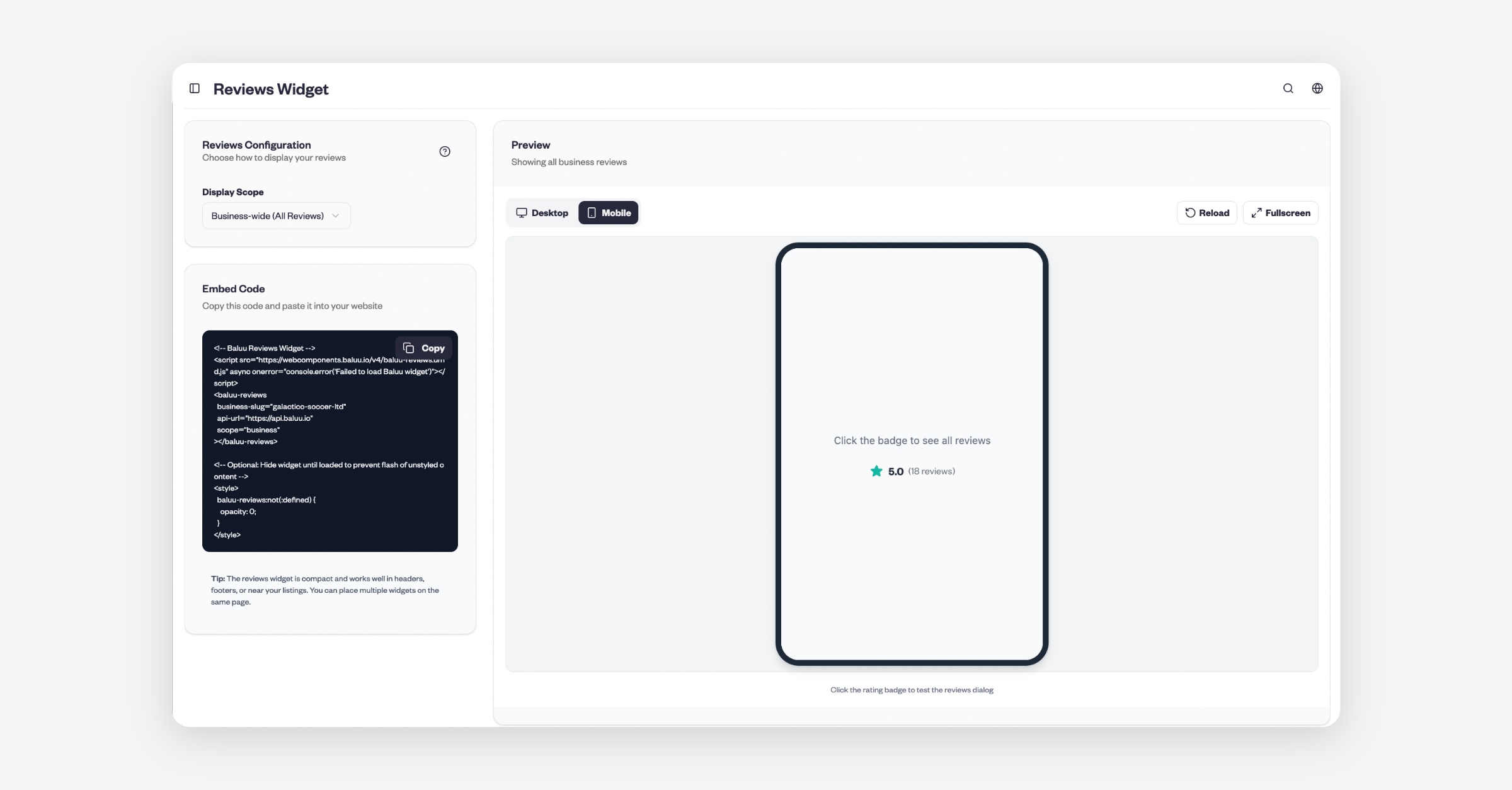
  6. Copy the embed code
    Once you’ve selected your display scope, copy the generated embed code.

  7. Embed the code on your website
    Paste the code into your website’s HTML where you’d like the reviews to appear.

That’s it!

Your Baluu reviews will now be visible on your external website, helping to build credibility and trust with potential customers.

PrevEarly Access Events
NextHow to Embed Baluu into Your Website
Was this helpful?