Docs / Getting Started
Notes & Auto-Emails
Learn how to fill out your pre-event and post-event notes to make sure your customers are well informed.
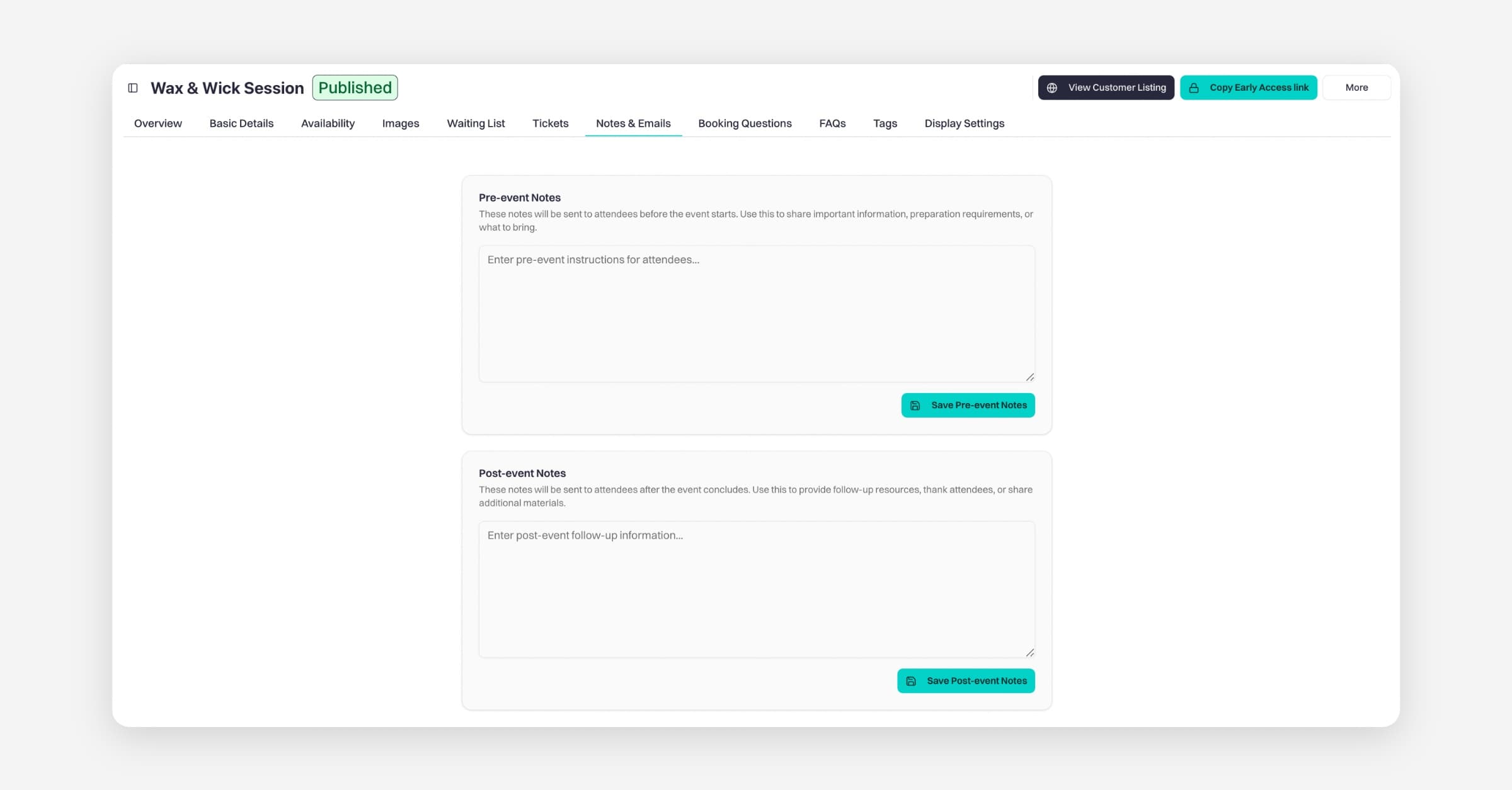
Pre and post event notes are where you can contact your customers. If you have information you need to tell the customer before or after the event, this is how you can get the information to them. You can add a link to a PDF or other document they may need before the session, dietary requirements, and say what to wear or bring!
Please note, if you add a course or a term, the automated emails will be sent after the first session. These automated emails are more suitable for regular dates or one-on-one sessions.
Go to the Baluu Dashboard and click on the 'Services' tab and select 'Listings'.
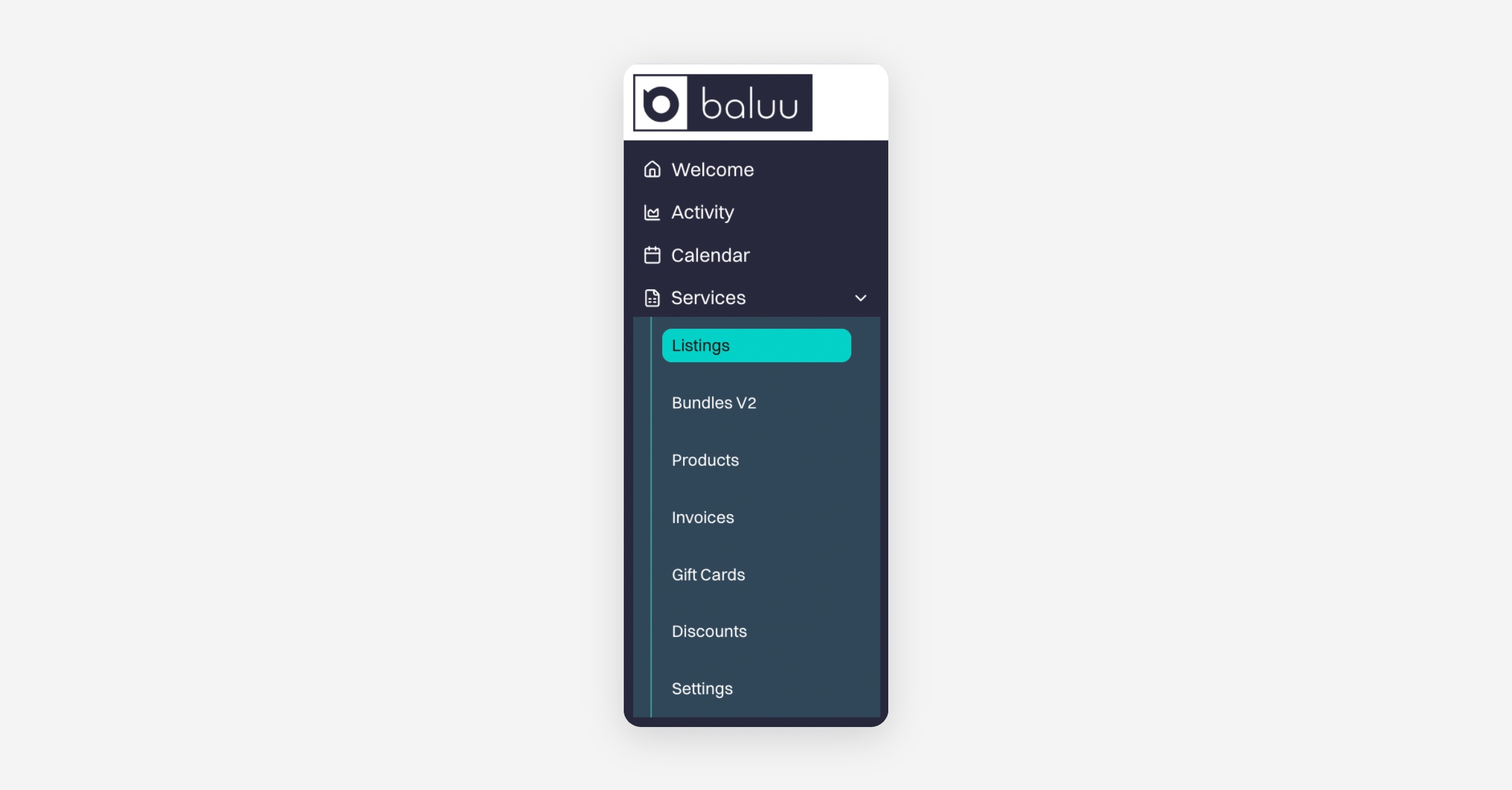
A new page with all the event listings will appear. Go to the event listing which you would like to add a pre or post event note to and click manage
Select the 'Notes & Emails' section
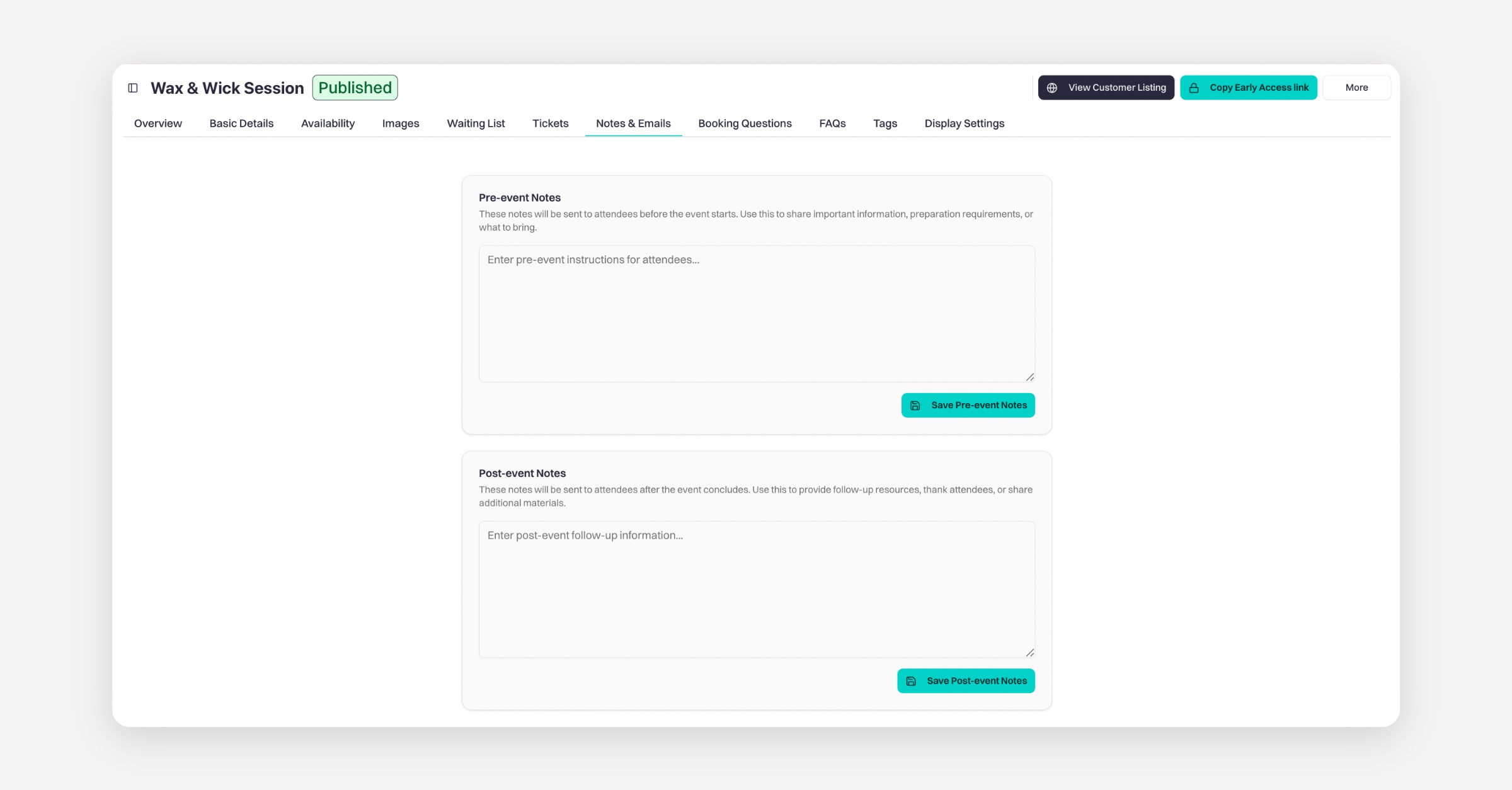
The Pre-Event and Post-Event Notes form will appear. Please complete both sections and save each one separately.
Your pre-event notes will be included in the confirmation email and will immediately appear in the section labeled 'Here's what you need to know before the event' after booking.
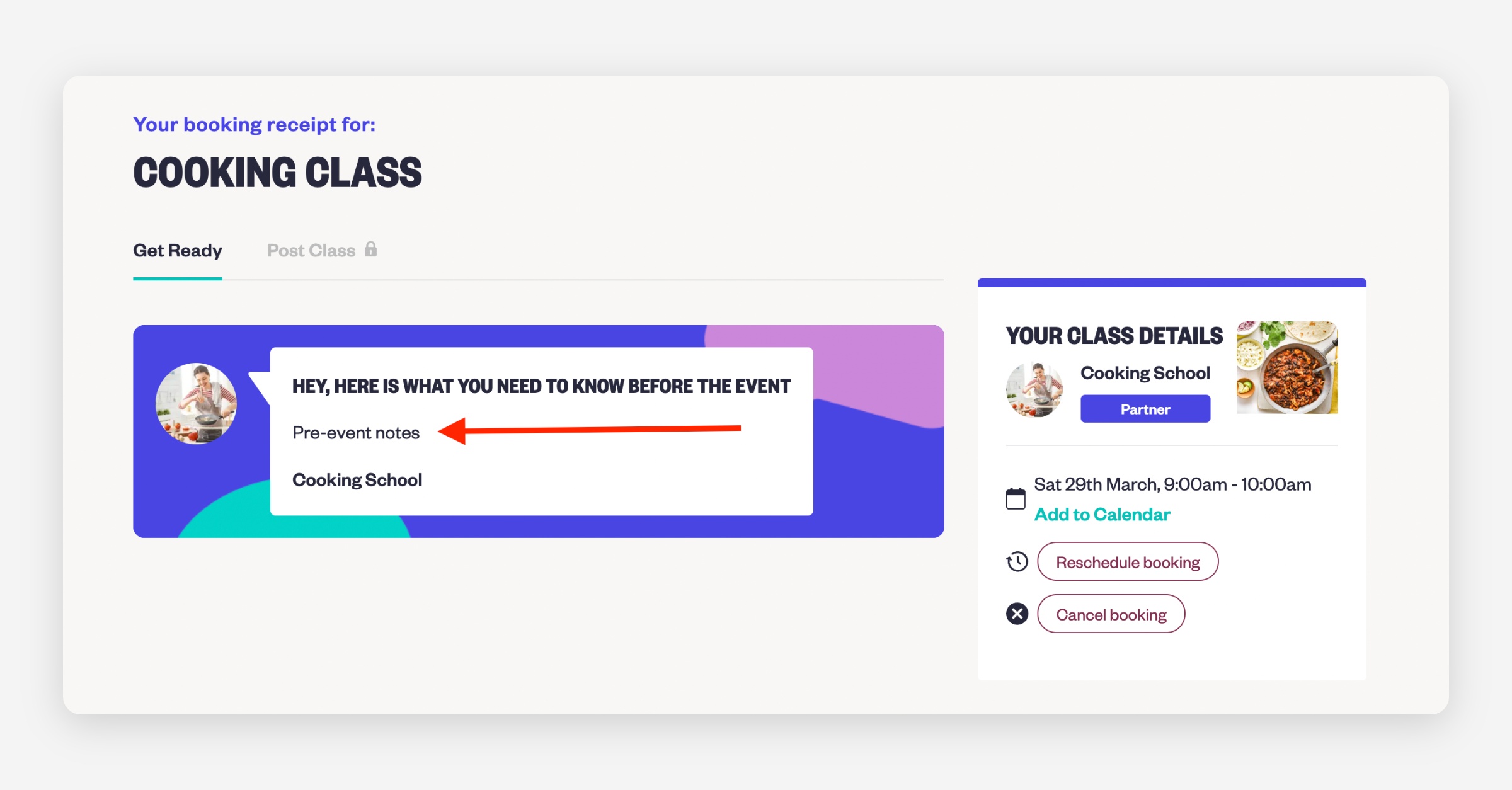
Informational tips for Pre-event notes:
A welcome message introducing yourself and showing off your delightful personality
Include a list of anything customers need to have for the event
Is the location easy to find?
Do they need any specific attire?
Do they have any dietary requirements?
A link to a PDF or other document they may need before the session
Informational tips for Post-event notes:
A message of thanks for attending.
Any follow-up information about the event that you feel would be useful.
Suggestions and links to your other events on Baluu.
A few words encouraging them to leave a review.
Customers receive the following emails for all events:
Customers receive the following emails for all events:
A booking confirmation email, sent immediately after a purchase is completed.
An in-person class reminder email, sent 3 days before the event, which also includes any pre-event notes or instructions.
You can keep track of all email communications sent to your customers in the Notifications Dispatch Center. To access it, go to your Dashboard, select Notifications, and then choose Dispatch Center from the dropdown menu.
Reminder Timings
By default, reminder emails are sent 3 days before the event, but you can customise this to your needs (e.g. 24 hours or 1 week before). Any Pre-Event Notes you’ve added will automatically be attached to these reminders.
How to Manage Reminder Timings
You can override the default reminder email settings by going to Settings, opening the dropdown menu, and selecting Reminders.
Disabling Reminder Emails
If you do not wish to send reminder emails, you can disable them completely by turning off the Reminder Emails toggle and clicking Save Changes.
Once disabled, no automatic reminder emails will be sent to customers.
Pre-Event Notes in Reminder Emails
If you have added Pre-Event Notes to your event, these will automatically be included in the reminder emails.
This ensures customers not only receive a reminder about their booking but also all the important information they need, such as venue details, what to bring, or any special instructions.
Important
Any changes you make in the Reminders settings apply to all of your events.
If you run multiple events, we recommend leaving the reminder message blank and only configuring the reminder timing. For event-specific information, use Pre-Event Notes, as these will automatically be included in reminder emails for the relevant event.
Was this helpful?