Docs / Getting Started
Managing Reviews and Post-Event Emails in Baluu
Manage your post-event emails and decide how reviews are shown across your Baluu pages.
What Are Post-Event Emails?
Post-event emails are automatic messages sent to customers 24 hours after an event ends. These emails can be used to:
Thank attendees for joining
Invite them to leave a review
Redirect them to an external review platform
Or be disabled entirely if you prefer not to send follow-ups
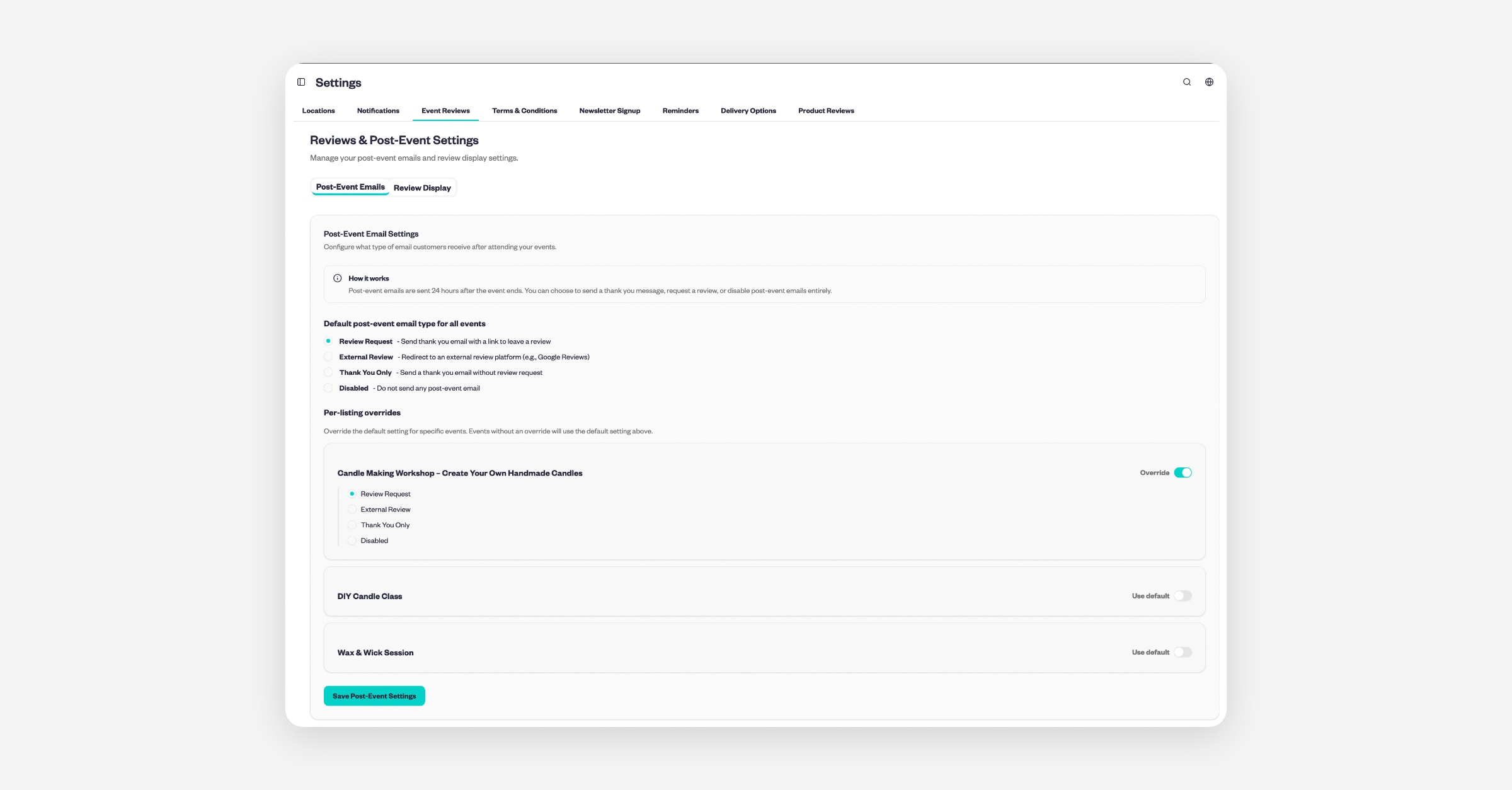
To manage these settings, go to Services, select Settings, then click Event Reviews.
Post-Event Email Options
Review Request This option sends a thank-you email that includes a direct link for customers to leave a review on your Baluu page.
External Review Prefer using a third-party platform like Google Reviews? This option redirects customers to an external review site instead of Baluu’s internal review system.
Thank You Only This sends a simple thank-you email with no review request. A good choice if you want to stay in touch without asking for feedback.
Disabled If you don’t want any post-event emails sent, you can disable them completely.
Per-Listing Overrides: Full Control Per Event
Not all events are the same — and Baluu understands that. Under Per-listing overrides, you can customise post-event emails for individual events.
How to Disable or Enable Reviews
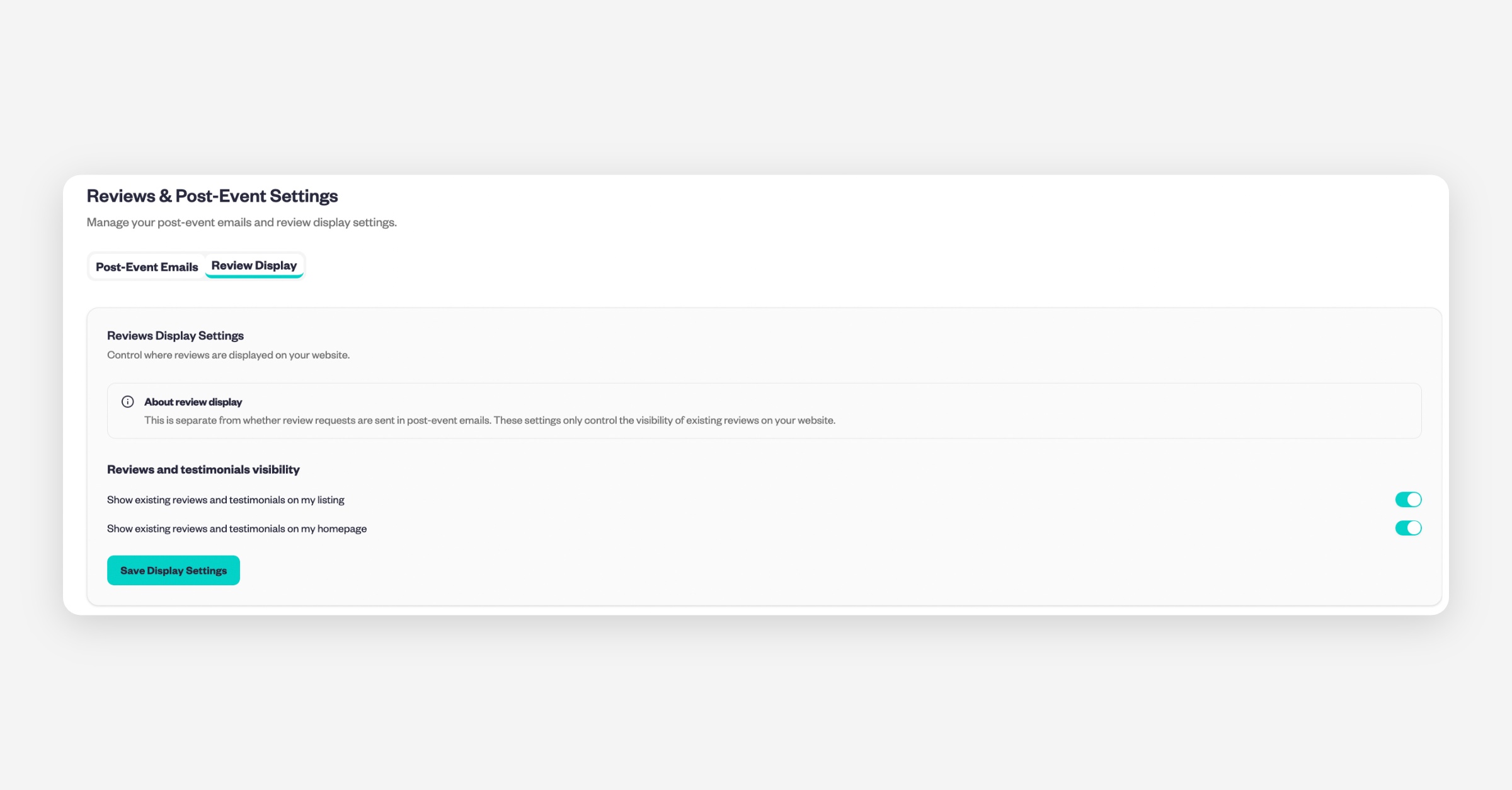
To manage your review display settings, follow these steps:
Go to Settings
Select Event Reviews
Open the Review Display tab
From there, you can toggle reviews on or off for:
Show existing reviews and testimonials on my listing
Show existing reviews and testimonials on my homepage
Was this helpful?