Docs / Getting Started
Images
Adding images to your event is easy.
First head to 'Services' then press 'Listings'.
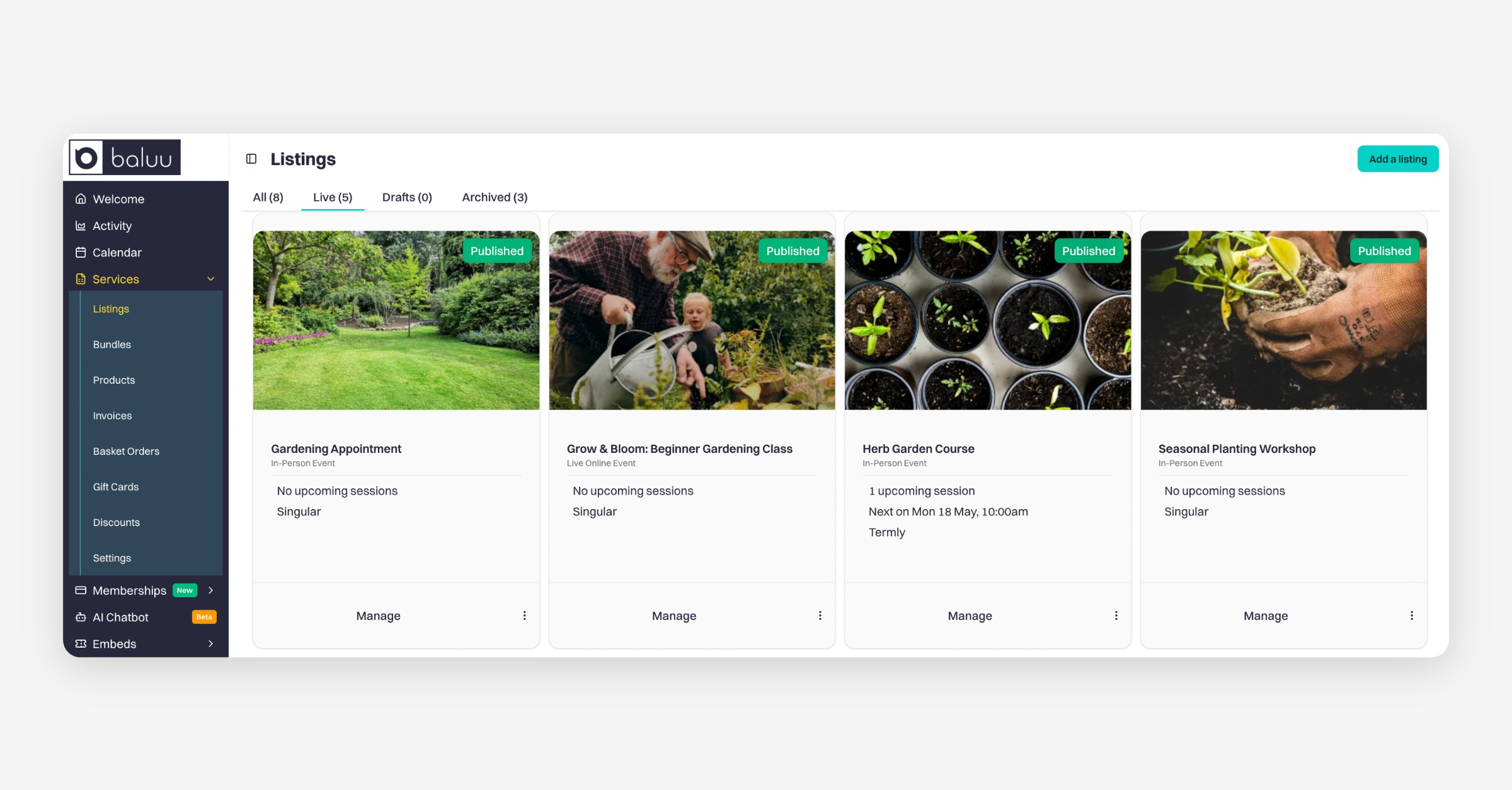
Choose 'Manage' on the event you would like to add pictures to.
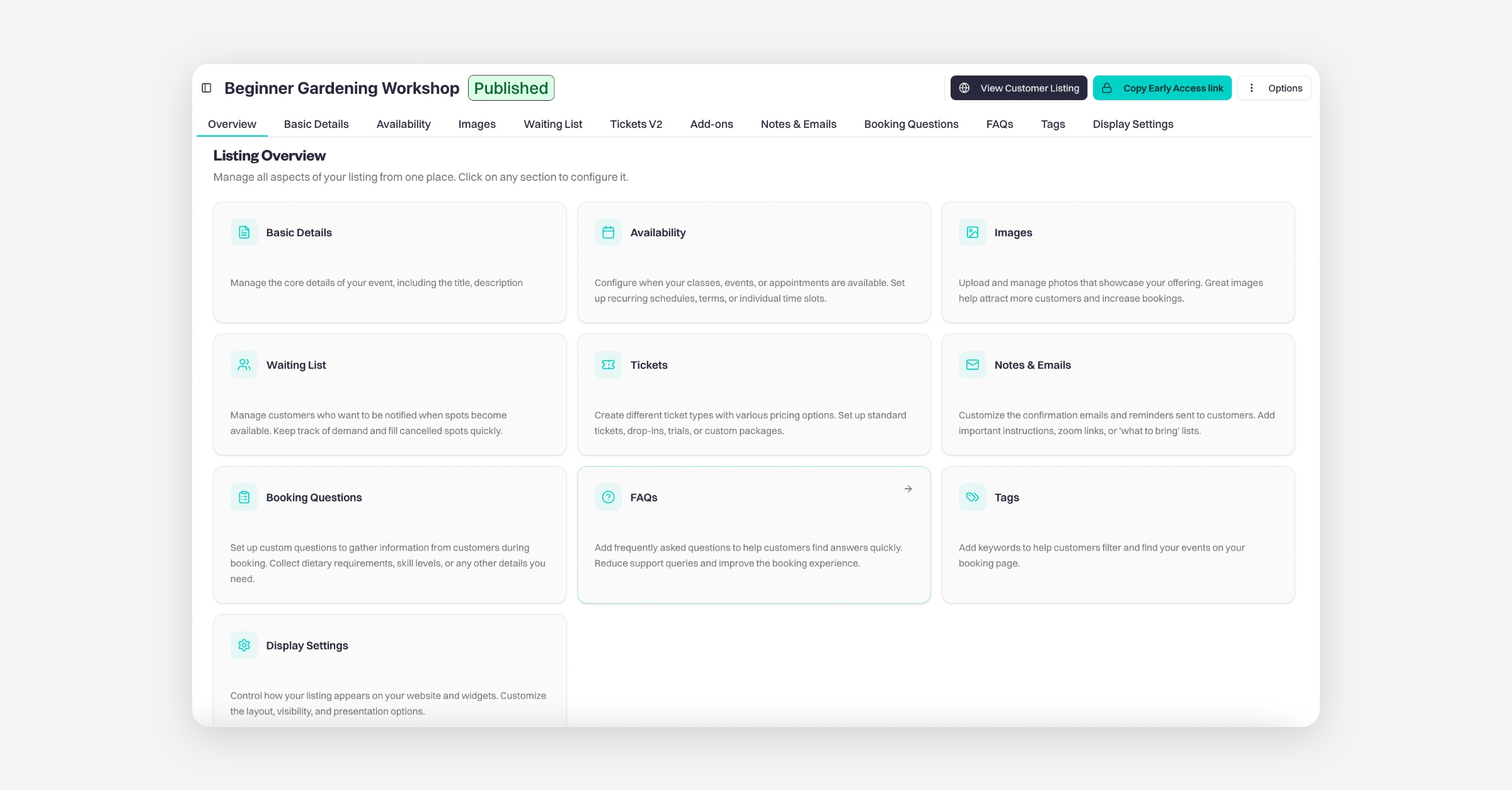
On the following management screen, go to the 'Images' tile and press 'Add and Remove Images'.
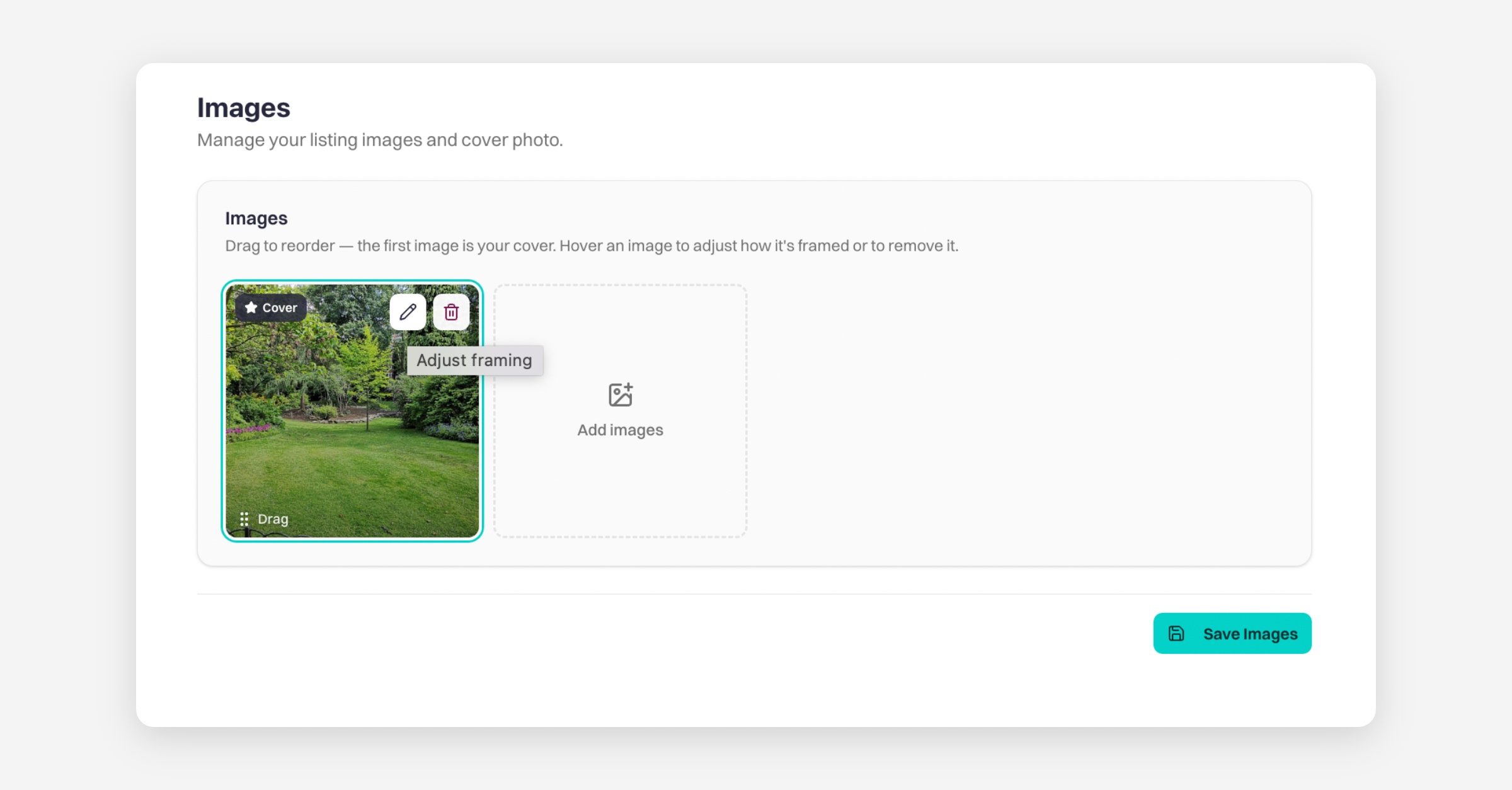
You can now see your images page.
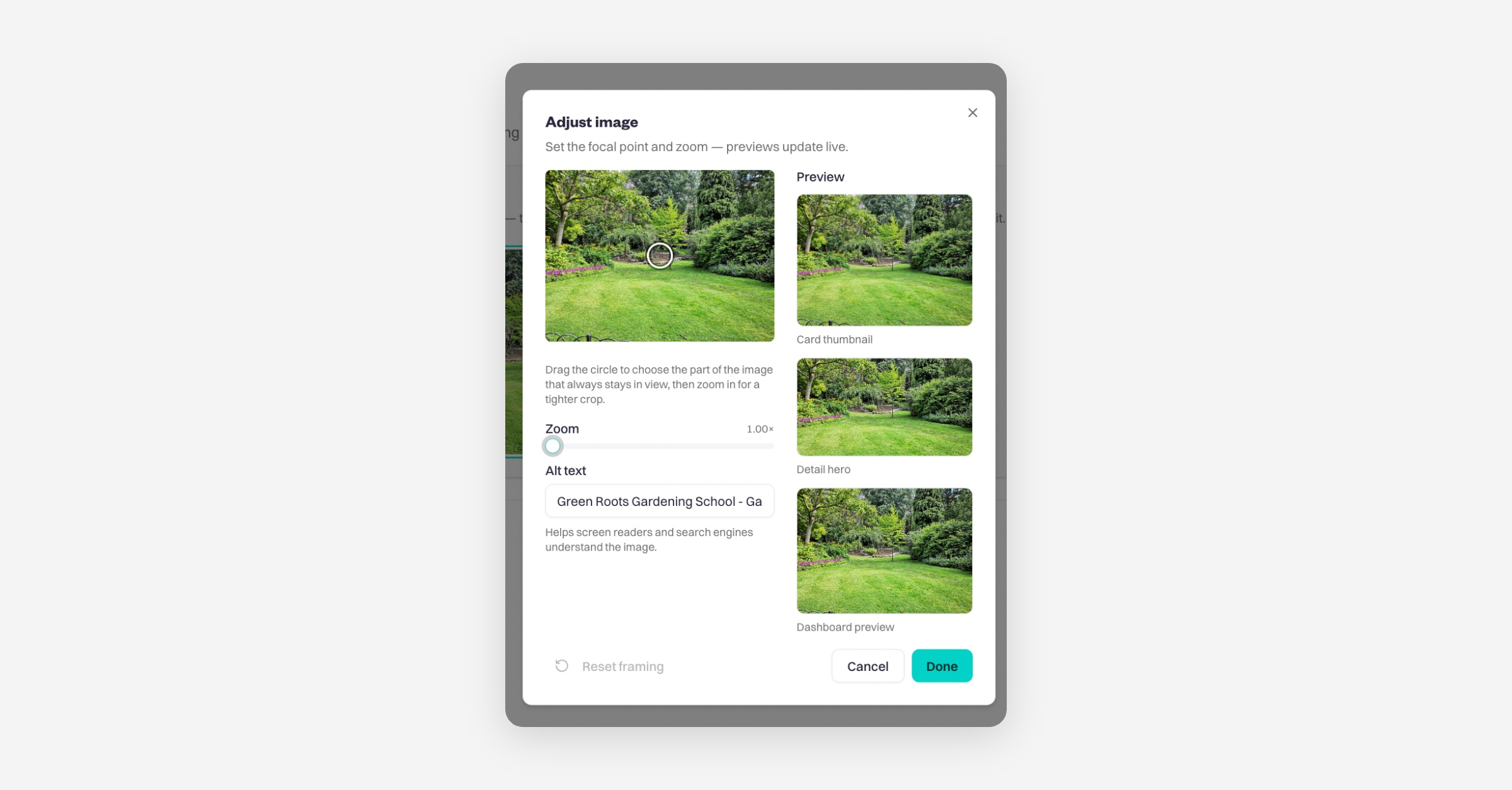
Drag and drop to reorder your images — the first image will be used as your cover image. Hover over an image to adjust the focal point and zoom level, with previews updating live as you make changes, or remove the image if no longer needed. Press 'Save Changes'.
To delete images, press the bin icon in the top left of the picture.
Recommended Baluu Website Image Guidelines
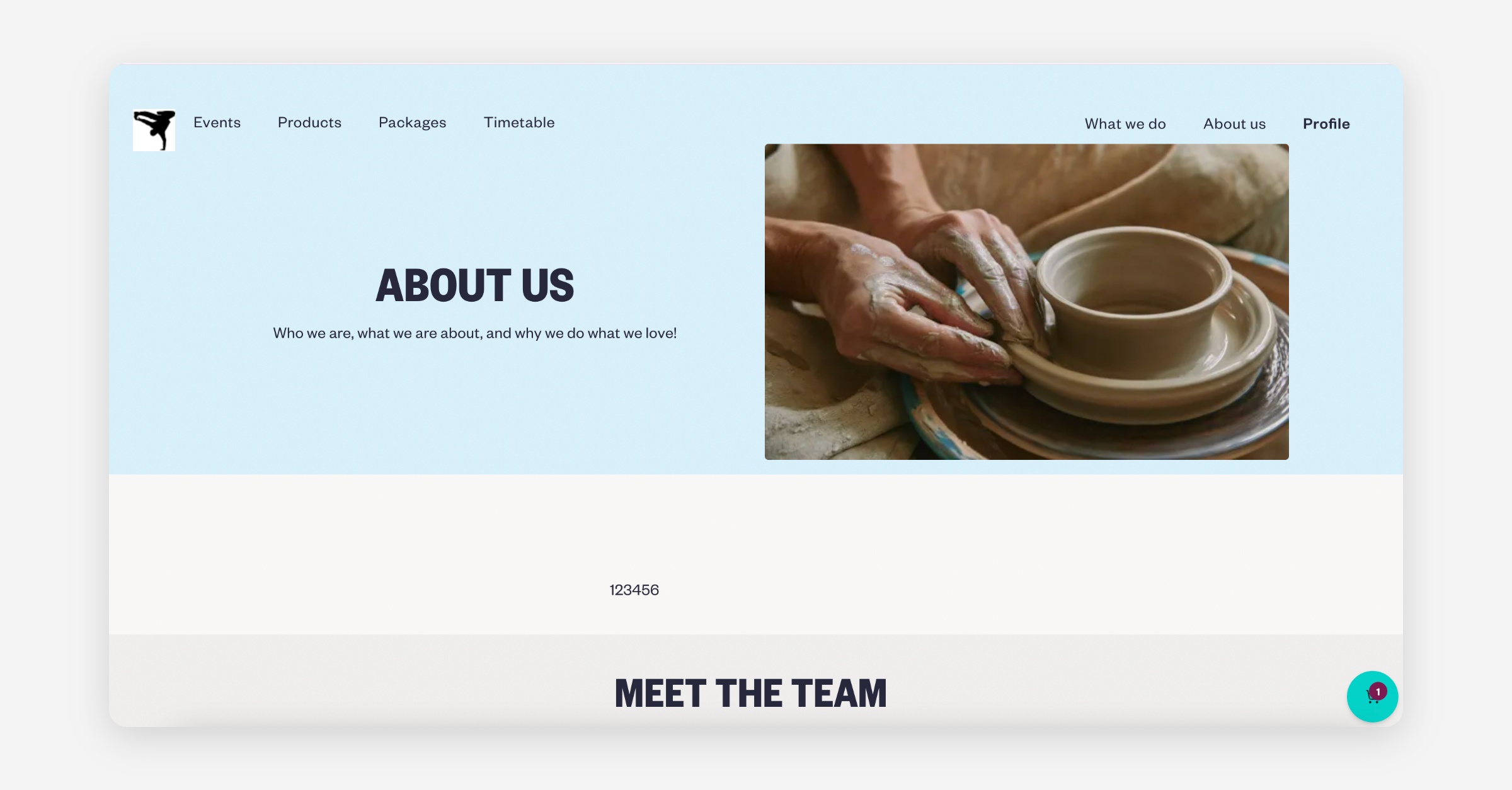
Heading / Hero / About Us Images
1400 x 788 px or similar wide landscape ratio
Use for:
Homepage top image
About Us image
Timetable etc.
Logo
500 x 500 px
Best as:
PNG
Transparent background
Centred with padding
Favicon
64 x 64 px
PNG recommended.
Was this helpful?