Docs / Getting Started
How Do I Create Gift Cards?
Gift cards are a wonderful way for business owners to help customers purchase different events and products without breaking the bank. Customers enjoy sharing buying Gift Cards which showcase an amazing experience within their Gift Card images and that's we suggest branding your Gift Card to the best of your abilities.
Please see below how you can create, view, and edit Gift Cards.
Go to the Baluu Dashboard and select the 'Services' tab and then select 'Gift Cards'.
Click 'Edit Template'
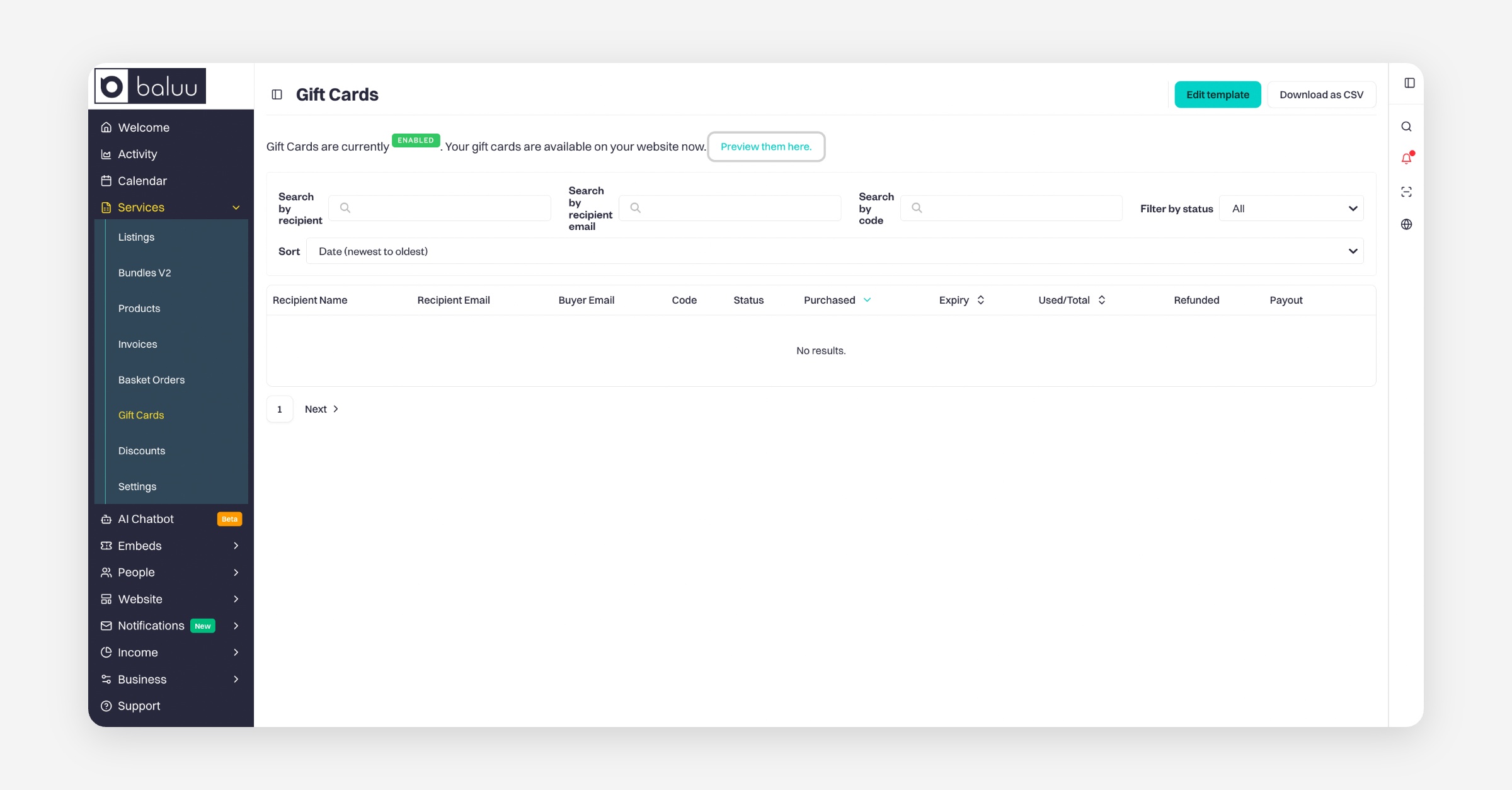
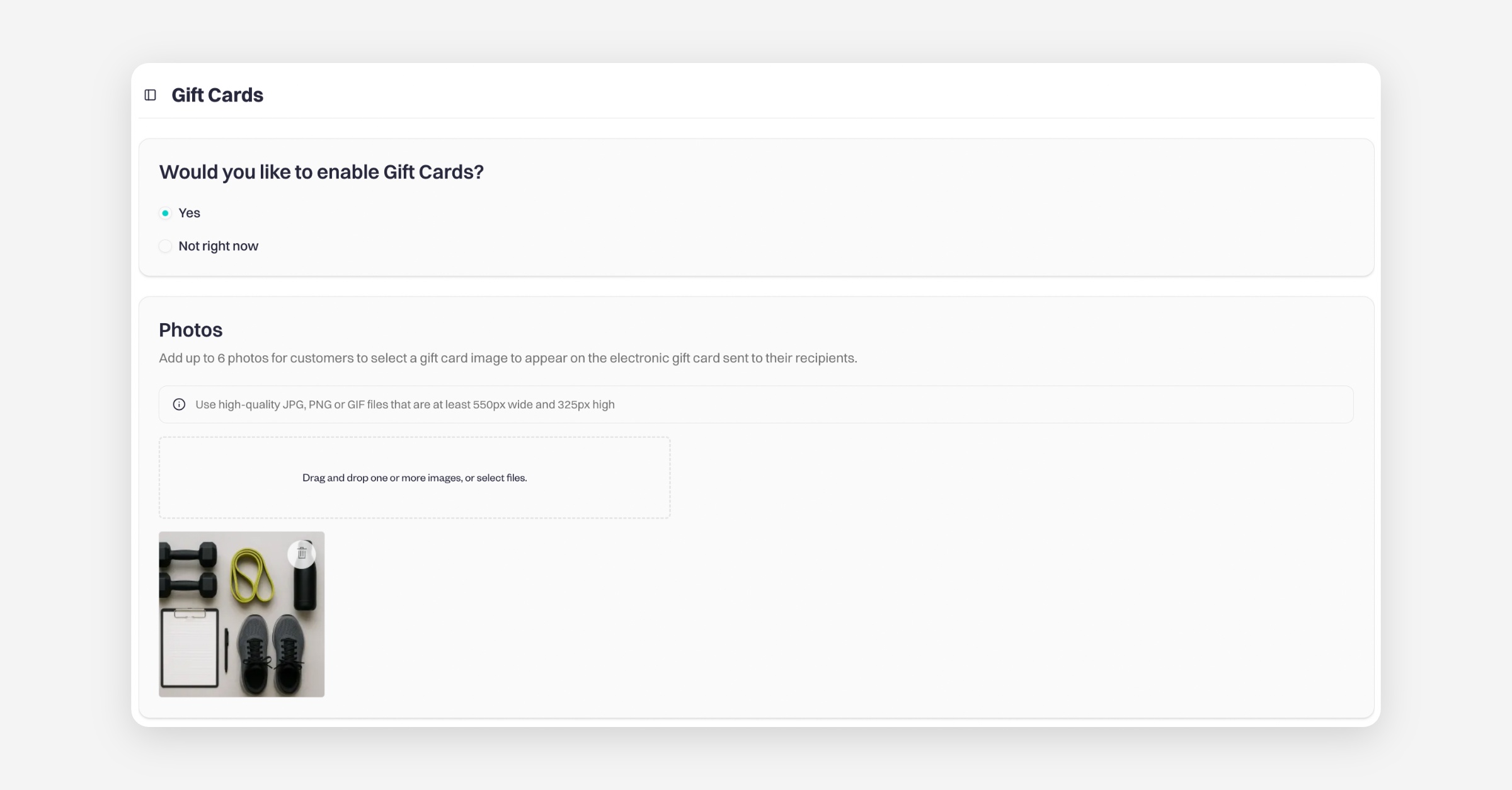
A new page will open with the Gift Card settings. You can enable/disable Gift Cards. Select 'Yes' to enable Gift Cards. We advise business owners to add 6 photos to their Gift Card images. Since this is what customers see before purchasing Gift Cards it is important to showcase your event experience.
When you scroll down the page you will find a section called 'how long is a Gift Card valid for?
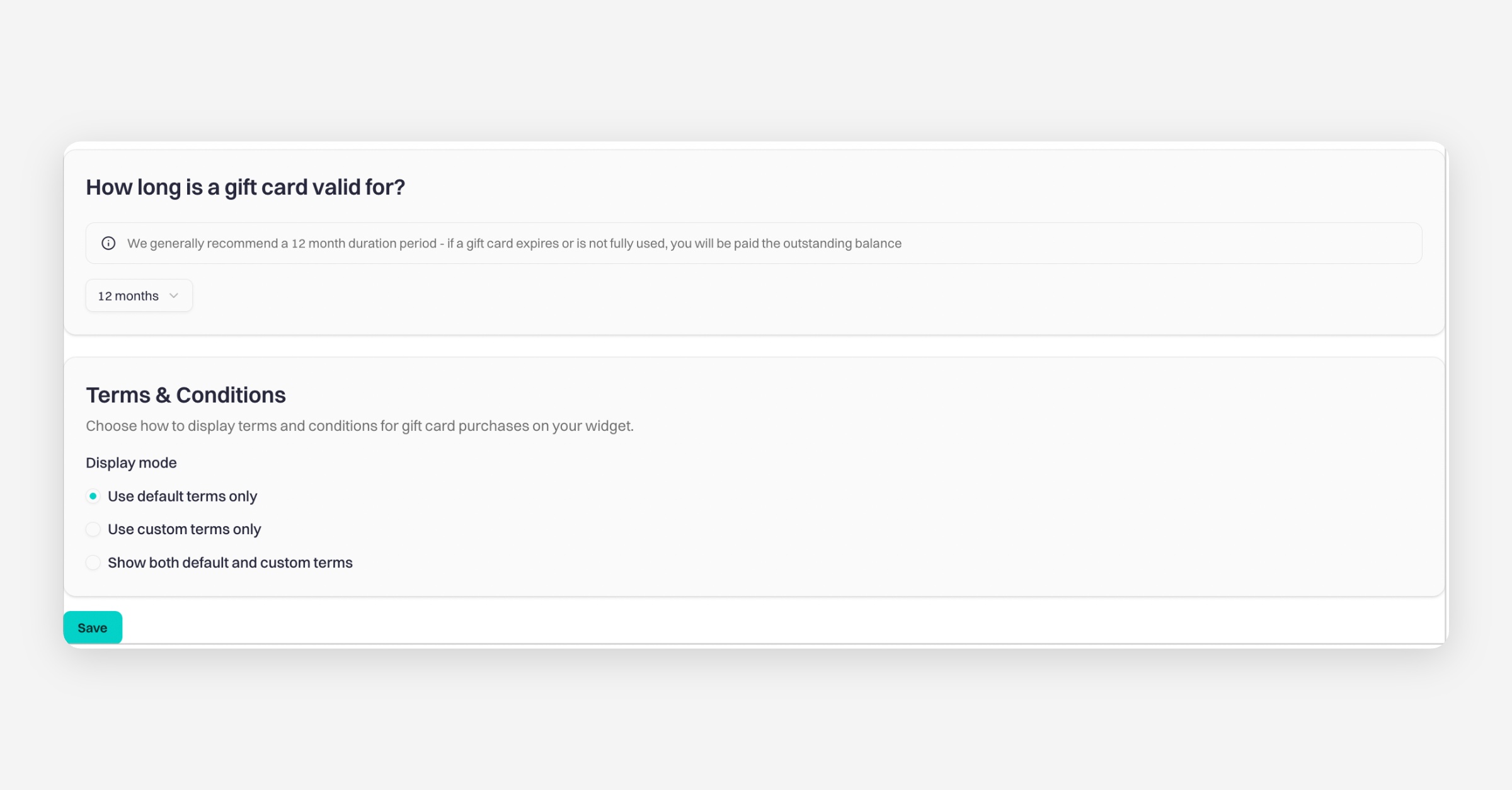
Select Term & Conditions and then select the 'Save' button to save all the changes.
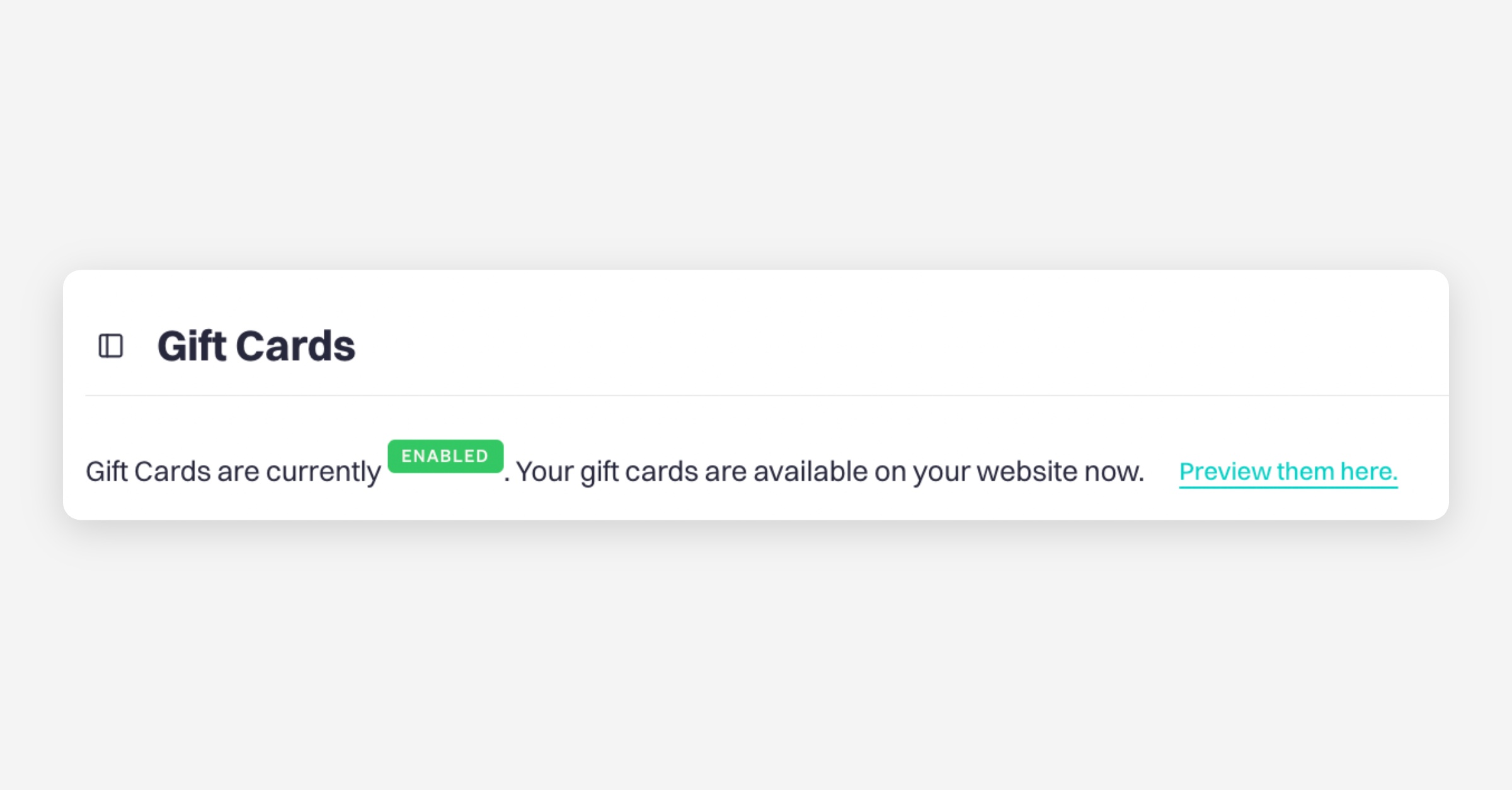
When you go back to the main Gift Card page, you can open the page to see how your gift card will look for customers. Click “Preview them here.”
Was this helpful?