How to add Booking Policies
You can now create both a default booking policy and additional custom policies, allowing you to apply different cancellation or rescheduling rules to specific tickets.
How it works
First, you can set a default booking policy that applies to all your events. Then, you can create additional policies and assign them to specific tickets when needed.
Step 1: Create or manage booking policies
Go to Settings
Select Booking Policies
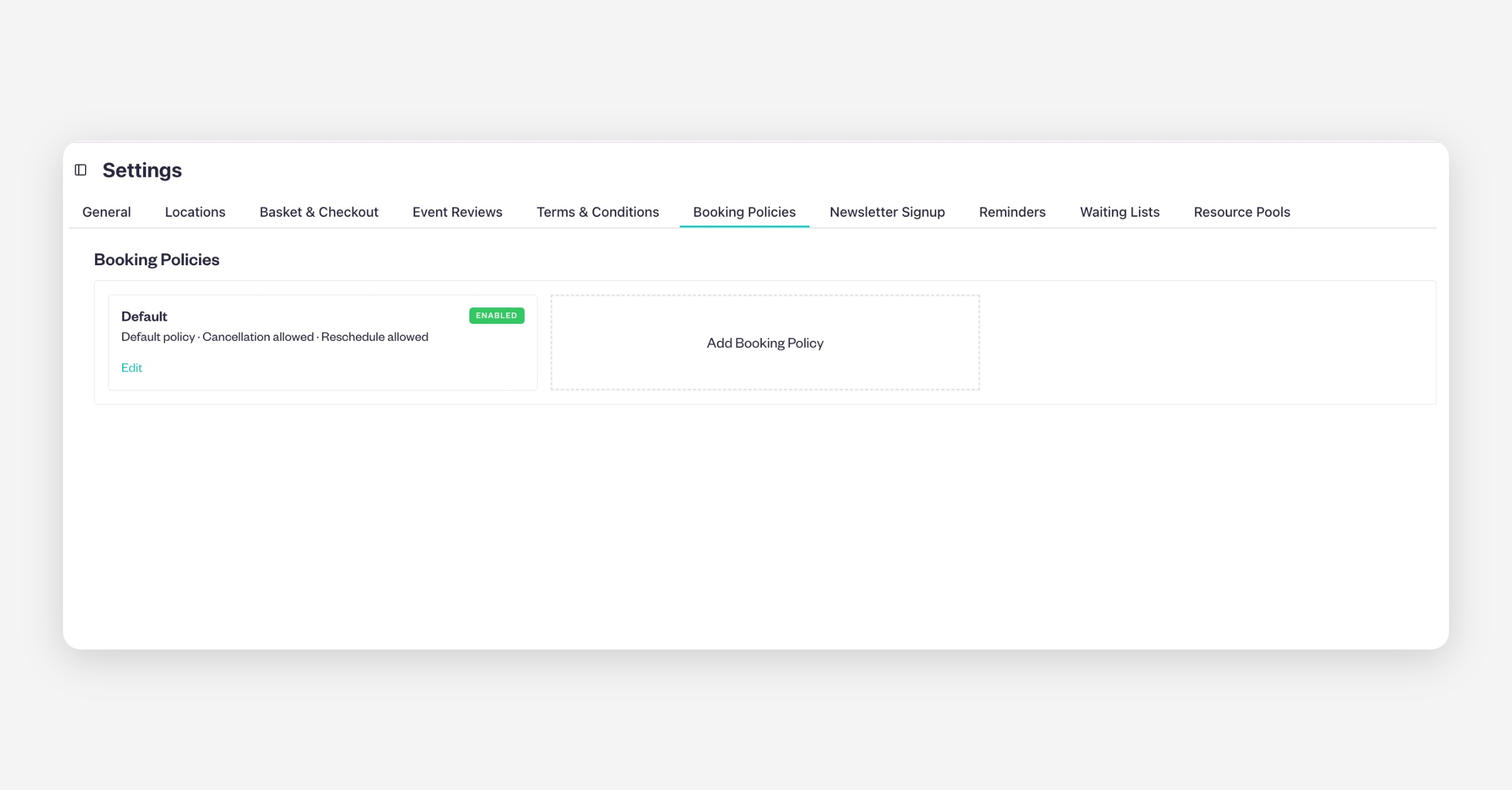
Here, you will see your existing policies, including the default one.
Click Add Booking Policy
Enter the policy details you can configure how cancellations, refunds, and rescheduling work for customers. Set whether customers can cancel or reschedule their bookings, define refund percentages based on how far in advance they cancel using cancellation tiers, add optional terms and conditions, and choose whether this should be your default policy for all events or a custom policy for specific tickets only.
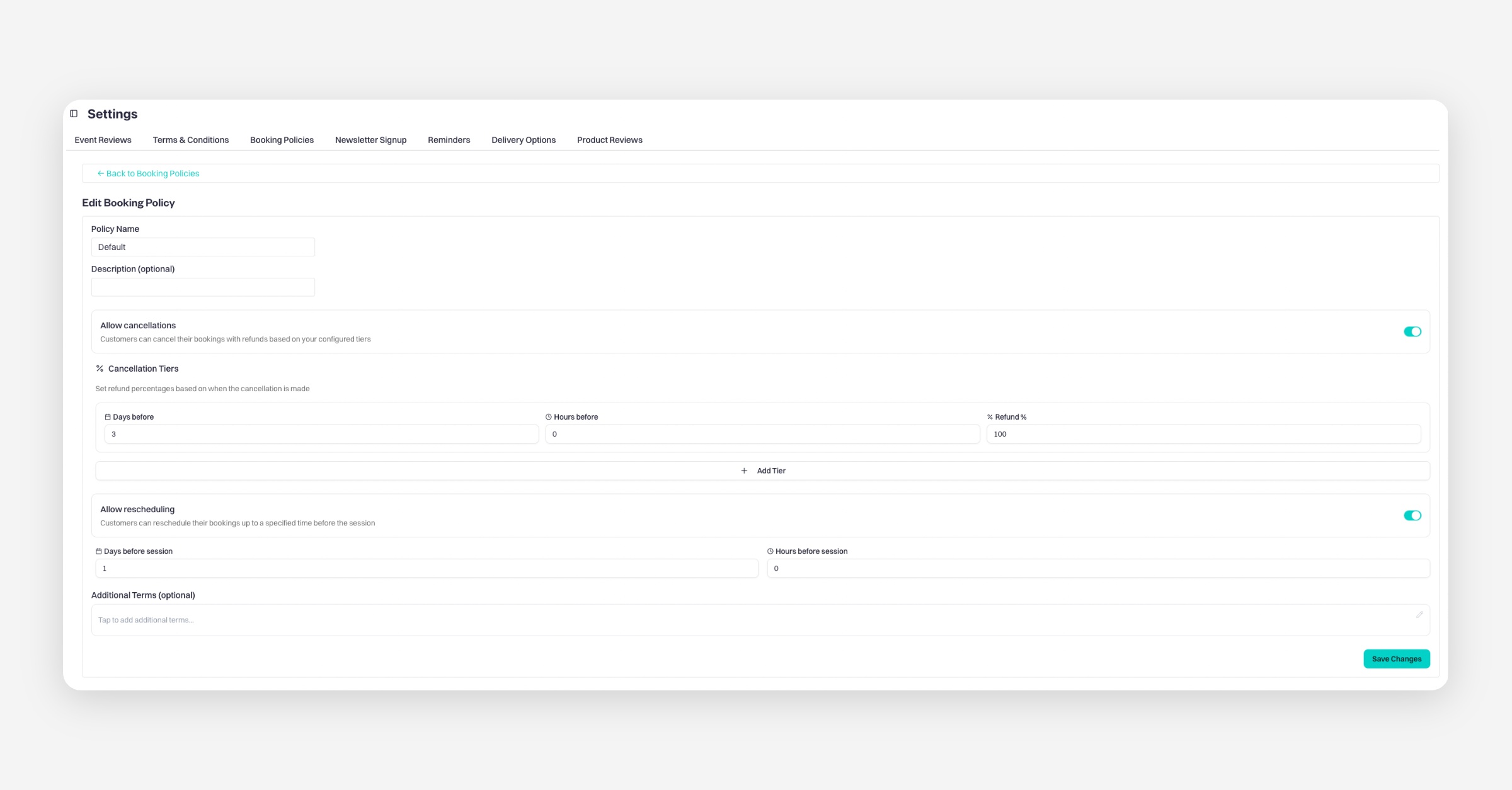
Click Save Changes
If you don’t set it as default, you can assign it manually to specific tickets later.
Step 2: Assign a policy to a specific ticket
Go to the listing (event) you want to update
Click Tickets V2
Either create a new ticket or edit an existing one
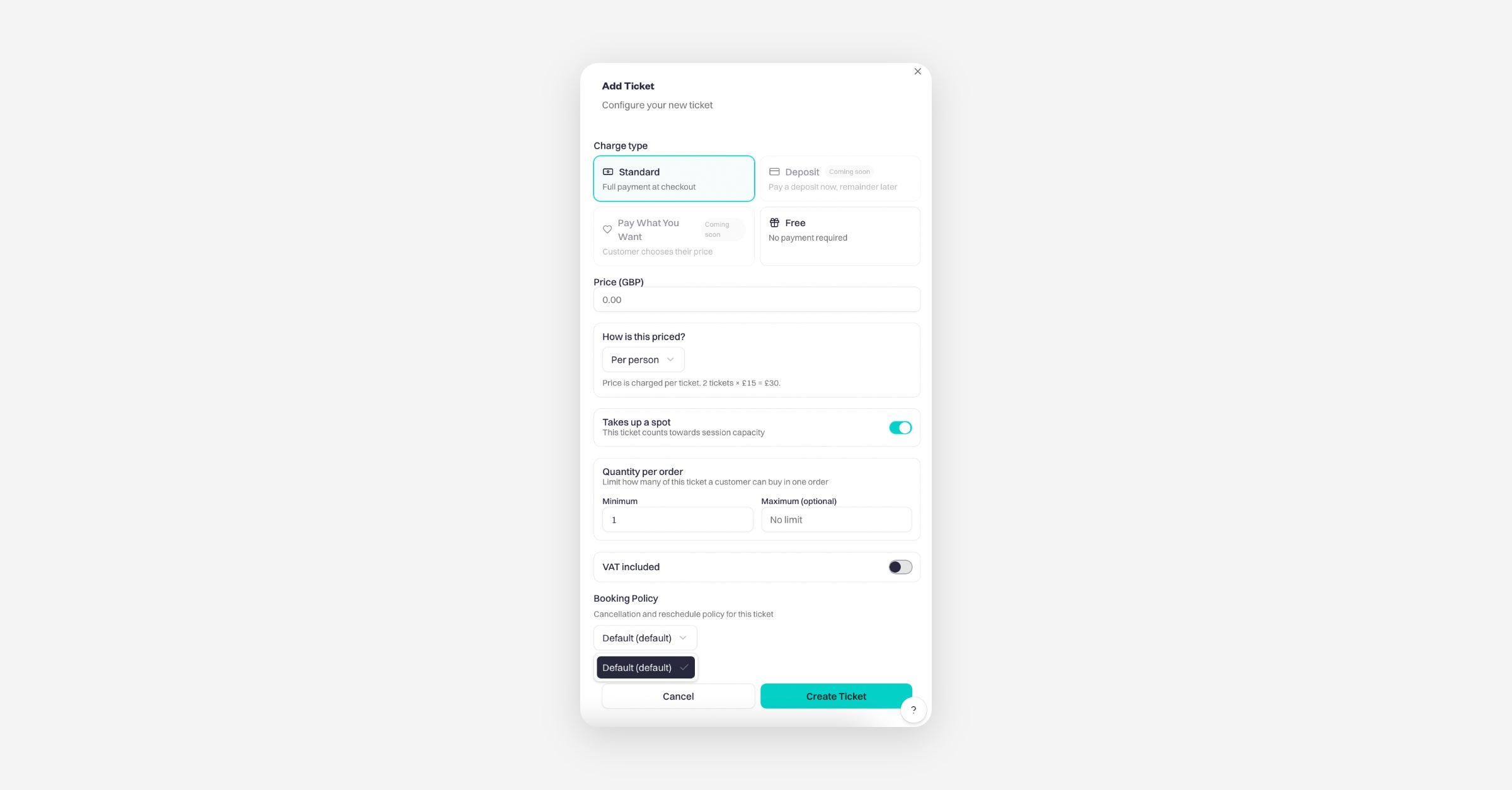
Scroll down to Booking Policies
By default, all tickets use the default policy. However, you can change this:
Select your custom policy from the dropdown
Click Save Changes
Result
Once assigned, customers who select that specific ticket will see and follow the custom booking policy, instead of the default one. This allows you to offer different terms for different types of bookings within the same event.
Was this helpful?